Rename the descriptive part of the filename and leave the extension alone unless you are intentionally changing the container with a proper tool. Keeping the original extension is the safest rule for ordinary file management.
The filename, extension, container and codec are different things. This guide explains the difference, the characters that cause trouble on Windows, macOS and Linux, and how to recover after an accidental rename.
Filename, extension, container and codec
The filename is the label you see. The extension is the suffix after the last dot, such as .mp4. The container is the file structure that holds video, audio, subtitles and metadata. The codec is the method used to compress a stream inside that container.
An MP4 container can hold H.264, H.265/HEVC, AV1 or another video codec, and audio may be AAC, AC-3 or something else. An MKV container can hold many of the same streams. The extension tells the operating system and player which container to expect; it does not identify every codec inside.
| Layer | Example | What renaming changes |
|---|---|---|
| Filename | holiday-clip | The label used by the filesystem |
| Extension | .mp4 | The expected container, not the codec |
| Container | MP4 | Nothing, unless the file is remuxed |
| Codec | H.264 video, AAC audio | Nothing |
A single file can contain multiple audio tracks, subtitles and chapters. The extension still describes the container as a whole; none of those streams becomes a different format because the visible name changed.
Why .mp4 to .mkv is not a conversion
Changing the extension from .mp4 to .mkv does not rewrite the container. The bytes inside remain the same, but the player now expects Matroska and may reject the file or open it incorrectly. The reverse rename has the same problem.
A real conversion or remux requires a media tool that reads the source and writes a new container or encoded stream. That is a separate operation with its own compatibility and quality considerations. Renaming is not a substitute, and it is not a repair for a corrupted file.
If a file was already named with the wrong extension, renaming it back to the correct one can restore normal opening. If the bytes are damaged, changing the suffix will not fix them.
Safe filename characters and operating-system limits
A cross-platform-safe name uses letters, numbers, spaces, hyphens and underscores. Avoid these Windows-reserved characters: < > : " / \ | ? *. Also avoid control characters and names ending in a space or period.
Windows reserves device names such as CON, PRN, AUX, NUL, COM1 through COM9 and LPT1 through LPT9. A file named exactly that, with any extension, can behave unexpectedly. Use a different descriptive name instead.
| System | Practical consideration | Safer habit |
|---|---|---|
| Windows | Case-insensitive, reserved characters and device names | Use letters, digits, hyphen and underscore |
| macOS | Finder may hide extensions and applies its own filename rules | Show extensions before renaming; keep the suffix |
| Linux | Case-sensitive; slash and NUL are not valid in a name | Avoid characters that break other systems |
macOS can display a file without its extension. Before renaming, enable filename extensions in Finder or use Get Info, so you do not accidentally delete or change the suffix. Linux allows many characters that Windows does not, but a file may later move to a drive or cloud service that cannot handle them.
The extension is normally the final dot-separated component. A name that begins with a dot may be treated as hidden on Linux and macOS, and repeated dots can confuse tools that infer the type. Keep the visible name simple.
Batch renaming risks
Batch tools can rename hundreds of files quickly, including the extension. They can also overwrite or reorder files, replace part of a title unexpectedly, or create names that collide on a case-insensitive system. Start with a copy, use a preview or dry-run mode, and verify a few results before applying the pattern to the whole folder.
Do not include the extension in a wildcard replacement unless the tool explicitly separates the base name from the suffix. Keep a backup or use the tool's undo history. For a small library, renaming one file at a time is safer than building a complex pattern.
A case-only rename can appear to work on Windows or macOS but create a separate file on a case-sensitive Linux filesystem. Check for collisions before copying a renamed set to another system.
Metadata is separate from the filename
Embedded metadata can include a title, creator, date, description, GPS location, chapters and subtitle streams. Renaming the file does not rewrite those fields. A media server may use the filename, folder name or embedded metadata for matching, so a rename can change how it appears in a library.
If you need to remove or change embedded metadata, use a media metadata tool that explicitly supports the container. Renaming cannot strip location data, change the title tag or remove a subtitle stream. Conversely, a privacy-conscious rename does not make embedded metadata disappear.
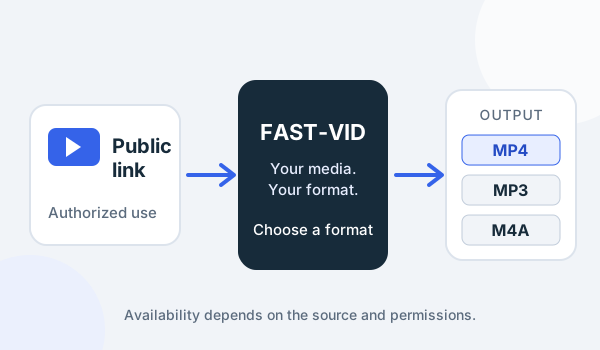
FAST-VID does not edit metadata. It prepares an MP4 video, MP3 audio or conditional M4A audio file; any later metadata cleanup is your own separate step.
Some media servers use the folder name as well as the filename. A clean rename can improve matching, but it can also break a manual match that depended on the old name. Rescan and verify after large changes.
After an accidental rename or playback failure
If a video stops opening immediately after a rename, check the extension first. Rename it back to the original suffix. Use the Recycle Bin, Trash or the rename tool's undo history rather than downloading a “repair” utility you do not need.
If the file still fails, compare its size and duration with the source. A file that is incomplete, zero bytes or much smaller than expected may be a failed download. A complete file that opens in one player but not another may have a codec or container compatibility issue, not a filename problem.
Do not rename a file to a series of different extensions to “find one that works.” That does not create a valid container and can make the problem harder to diagnose. Keep the original extension and test with a player that supports the documented format.
Frequently asked questions
Does renaming an MP4 break it?
Renaming only the descriptive part does not change the contents. Changing the extension can make a player expect the wrong container, so keep the original suffix.
Does changing .mp4 to .mkv convert it?
No. The extension is a label. A real conversion or remux must rewrite the file with a media tool.
Which characters should I avoid?
Avoid < > : " / \ | ? * and control characters, trailing spaces or periods, and Windows reserved device names.
Will renaming remove metadata?
No. Embedded metadata is separate from the filename and is not changed by a rename.
How do I undo a bad rename?
Rename the file back to its original name and extension, or use the Recycle Bin, Trash or the tool’s undo history.
Sources and references
- Microsoft: Naming files, paths and namespaces
- Apple: Show or hide filename extensions on Mac
- Linux man-pages: path_resolution(7)
- MDN: Media containers
- FAST-VID: MP4 format explained
Try FAST-VID
Open the FAST-VID downloader for a supported public link, then rename only the descriptive part of the saved file. FAST-VID does not convert containers, repair corrupt files or edit metadata.