Choose the drive around the devices that must read it, then choose a filesystem those devices support. A USB-C port can be fast or slow, and a drive formatted for one operating system may be read-only or invisible on another.
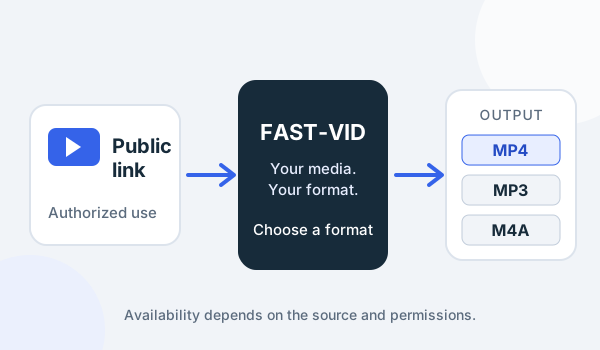
FAST-VID is a public-link downloader. It does not write directly to an external drive or manage a backup. Your browser saves a local file, and you move or copy it with your operating system. The 500 MB final-output limit is separate from the drive's capacity.
HDD versus SSD for video storage
A hard disk drive (HDD) uses rotating magnetic platters. It is often chosen for large archives because capacity is available at lower cost, but it is mechanical, heavier and more sensitive to movement. A solid-state drive (SSD) uses flash memory, has no moving parts and is typically quieter and more shock-resistant.
For simple playback and storage, a healthy drive with enough sustained throughput is usually more than adequate. Editing, indexing, copying a large library and running applications place different demands on a drive. Do not assume that an SSD is required for every video task, and do not assume that an HDD is too slow for every archive.
Reliability is not determined by the label alone. Buy from a reputable vendor, check the warranty and keep a backup. Any drive can fail, and a portable drive is easy to lose or drop.
USB connector versus USB protocol and speed
USB-C is a connector shape. It is not a speed rating. The USB-IF explicitly separates the Type-C connector from USB 3.2 and USB4, and a Type-C port or cable may support different data rates. The same applies to USB-A: the connector does not tell you whether the link is USB 2.0, 5Gbps, 10Gbps or faster.
Current USB-IF consumer naming uses the data rate, such as USB 5Gbps, USB 10Gbps, USB 20Gbps, USB 40Gbps and USB 80Gbps. The host, drive and cable must all support the rate; otherwise the link operates at the lowest common capability. A USB 2.0 Type-C cable can charge a device while limiting data to USB 2.0 speeds.
Check the actual drive and port specifications rather than the shape of the plug. A drive advertised with a fast interface may still be limited by its internal controller, the cable or the computer's port. No benchmark is implied by the connector name.
Capacity planning and file size
Estimate capacity from the files you expect to keep, not from the drive's marketing number. A drive's advertised capacity and the formatted usable capacity differ, and filesystem overhead, snapshots and trash can consume space. Leave working room for temporary copies, exports and backups.
Video size depends on resolution, codec, bitrate, frame rate and duration. FAST-VID's final files are capped at 500 MB, but a personal library may contain much larger files from cameras or editors. Plan for the whole library, plus a second copy, not just today's download.
A drive that is nearly full can slow down or fail writes. Keep free space and avoid using the only copy as a working scratch disk.
exFAT, NTFS, APFS and ext4
No filesystem is universally best. The right choice depends on which operating systems and devices must read and write the drive.
| Format | Typical strength | Important limitation |
|---|---|---|
| exFAT | Broad Windows/macOS compatibility; large files and volumes | No journaling; eject safely and keep backups |
| NTFS | Native Windows features and permissions | macOS generally reads but does not write without extra software |
| APFS | Native macOS format with snapshots and encryption options | Windows and most TVs need extra software or do not support it |
| ext4 | Common Linux filesystem | Windows and macOS need extra software; TV support is limited |
Apple's Disk Utility documents APFS, Mac OS Extended, MS-DOS (FAT) and ExFAT, and notes that ExFAT is intended for Windows-compatible volumes over 32 GB. Apple also states that macOS may read an NTFS drive but not write to it without additional software. Reformatting erases the drive, so back up first.
FAT32 has broad compatibility but a file-size limit that makes it unsuitable for many large videos. Do not choose a format only because an old device once accepted it; check the current TV, player or NAS documentation.
TV and media-player compatibility
TV and media-player support varies by model. Some accept FAT32 and exFAT; some accept NTFS; others have a narrower list. A drive that mounts on a computer may not appear on a TV, and a TV may list a file but refuse to play its codec.
Test with a small sample before formatting a large archive. Check the model manual for filesystem, capacity and codec limits. If the TV cannot read the drive, copying the file to a different drive or playing it through a computer, casting device or dedicated media player may be more practical.
The drive's filesystem does not change the video codec. A compatible exFAT drive does not make an unsupported H.265 or AV1 stream playable on a TV that lacks that decoder.
Power, portable drives and safe ejection
A small portable drive may draw power from the USB port. Larger desktop drives often have a separate power adapter. A phone, tablet or low-power hub may not provide enough power for a portable drive, even when the connector fits.
Use the cable and power supply supplied or recommended by the manufacturer. Avoid unpowered hubs for a power-hungry drive. Before disconnecting, use the operating system's eject or safe-remove control and wait for confirmation. Removing a drive during a write can corrupt the filesystem or the current file.
Keep the drive in a stable place, avoid dropping it and do not rely on it as the only copy. For important videos, keep another copy on a different drive or service and verify that it opens.
When an external drive is unnecessary
If your library fits comfortably on the internal drive and you have a separate backup, an extra drive adds cost and another device to manage. Cloud storage can be enough for small libraries, though upload time, recurring cost and privacy terms matter.
A NAS may be better when several devices need shared access, but it is a larger project. An external drive is a good middle ground for a personal archive, a shuttle drive between computers or a simple backup target.
FAST-VID does not upload to the drive, choose its filesystem or guarantee that a TV will read it. It prepares a supported public-link file; the storage decision remains yours.
Frequently asked questions
Is USB-C faster than USB-A?
Not necessarily. USB-C is a connector; the actual data rate depends on the host, drive and cable. Check for a rate such as USB 10Gbps or USB 20Gbps.
Should I use exFAT or APFS?
Use exFAT when the drive must move between Windows and macOS and those devices support it. Use APFS for a Mac-only workflow. Back up before formatting.
Can a Mac write to an NTFS drive?
By default, macOS generally reads NTFS but does not write to it without additional software. Check the current Apple documentation for your macOS version.
Why does my TV not see the drive?
The TV may not support the filesystem, capacity, partition scheme or power requirement. Check the model manual and test a small compatible drive.
Is an SSD required for video storage?
No. The right choice depends on capacity, portability, workload and budget. A healthy HDD can store video; an SSD is not automatically necessary.
Sources and references
- USB-IF: USB data performance language guidelines
- Apple: File system formats in Disk Utility
- Apple: If your Mac cannot save files to an external drive
- Microsoft: exFAT file system specification
- FAST-VID: Smart TV browser downloads
Try FAST-VID
Open the FAST-VID downloader for a supported public link, then save the file to a location your browser controls. FAST-VID does not write directly to an external drive or choose its filesystem.