Start with an Inbox folder, a small set of project or subject folders, and a separate archive. Name files so you can identify the content without opening them, and keep one copy outside the device you use every day.
This guide is for personal, work and creator libraries of downloaded videos. It is not a universal taxonomy. FAST-VID saves a browser-managed file with a 500 MB output limit; organizing, tagging and backing it up happen afterward on your own storage.
Start with a small, repeatable system
Use three states: Inbox for new downloads, Working for files you are reviewing or editing, and Archive for finished material you want to keep. Add subject or project folders only when they help you find something.
A practical hierarchy is:
Videos/Inbox— new downloads awaiting a decision.Videos/Projects— active work, one folder per project.Videos/Library— completed personal or reference videos.Videos/Archive— older material kept for the long term.Videos/Backups— a link or note pointing to the real backup, not a second working copy on the same disk.
Do not create a folder for every source, codec, resolution and date at the same level. Pick the axis you search by most: project, topic, client or year. A second axis can live in the filename.
Use descriptive names and optional dates
A useful filename answers “what is this?” before you open it. Include a short title, optional date, and a source or project tag. Keep the extension at the end and avoid changing it to force a format change.
Examples:
2026-05-14_interview_maria_final.mp4client-acme_product-demo_v2.mp4research_compression-example_source-a.mp4
Use letters, numbers, spaces, hyphens and underscores. Avoid \ / : * ? " < > | because Windows reserves them; avoid leading or trailing spaces and periods; and do not use names such as CON, PRN or COM1 on Windows. Linux is case-sensitive, so Final.mp4 and final.mp4 can be different files.
Dates are useful when chronology matters. Use one format consistently, preferably YYYY-MM-DD so files sort predictably. Do not put every fact in the filename; a notes file can hold the rest.
Separate temporary, final and backup files
Temporary files are not a library. Browser partial downloads, editor caches, proxies and exports can look like videos but are not the final copy. Keep them in the Inbox or a clearly named working folder, and delete them after confirmation.
Mark a file final only after you have checked playback, duration and the intended version. If you edit, keep the original or a known-good copy until the export is verified. Avoid adding “final” to a filename repeatedly; use a version number or date instead.
| State | Where it belongs | What to do |
|---|---|---|
| New download | Inbox | Check it, identify it, then file or delete it |
| Working copy | Project folder | Keep temporary exports and notes together |
| Final copy | Library or delivery folder | Verify playback and retain the source if needed |
| Backup | Separate disk or service | Keep it out of the day-to-day editing path |
Record source, ownership and permission notes
A small notes file beside a project can save future confusion. Record the source page, download date, creator or publisher, the permission or licence status you understand, and any attribution requirement. Do not paste passwords, session cookies or private account details into a notes file.
For personal use, a single notes.txt may be enough. For a team, use a spreadsheet or document with a consistent column for project, source, rights status and review date. This is record-keeping, not legal advice; confirm permission with the rights holder when the use matters.
Keep notes with the project rather than inside the video container. Renaming the file can change how a media library matches it, but it does not rewrite embedded metadata or grant new rights.
Search, tags and metadata
Good folder names and filenames make basic search work across Windows, macOS, Linux and mobile file managers. Add tags only if your file manager or media app supports them and you will maintain them.
macOS Finder tags and Windows file properties are not portable to every filesystem or cloud service. Embedded media metadata is also separate from the filename. A video's title tag may remain unchanged after you rename the file, and a media server may match by filename, folder structure or embedded metadata.
Choose one primary search method: descriptive filenames for everyone, plus tags or a notes index for power users. Do not depend on a single app's database as the only index of files you cannot otherwise identify.
Cross-platform considerations
If a drive moves between Windows, macOS and Linux, keep names conservative. Windows is generally case-insensitive, while Linux is case-sensitive; a name that works on one system can collide on another. Reserved Windows characters and device names can make a file inaccessible even when the underlying filesystem would allow them.
Avoid extremely deep nesting and very long paths. Cloud-sync clients and archive tools may impose their own limits. Use standard characters and test a sample copy on the other system before moving a whole library.
ExFAT is a common choice for a drive shared across systems, but no filesystem is universally best. The format must also be readable by the TV, media player or NAS you intend to use. Check that device's documentation.
The platform guides for Windows and macOS explain the browser save step; the folder system begins after the file lands.
A realistic sample library
This structure is intentionally shallow:
Videos/InboxVideos/Projects/AcmeDemo/— source, working export, notes.Videos/Projects/MariaInterview/— original, transcript, final.Videos/Library/Holiday/— finished personal videos.Videos/Library/Reference/— educational clips and notes.Videos/Archive/2025/— older projects kept for retention.
For a creator, add a delivery folder inside each project rather than a global “Exports” dump. For a family, subject and year are usually enough. For work, project or client is the primary axis, with dates in filenames.
Backup and cleanup habits
Keep at least one copy on a different device or service from the working copy. Verify that the backup actually opens; a sync icon is not proof. For important material, use more than one backup and test a restore before you need it.
Clean the Inbox weekly: file, rename or delete each new item. Remove failed downloads and duplicates only after checking size, duration and playback. Empty the trash deliberately, and remember that deleting a file from a media library may not delete the file from disk.
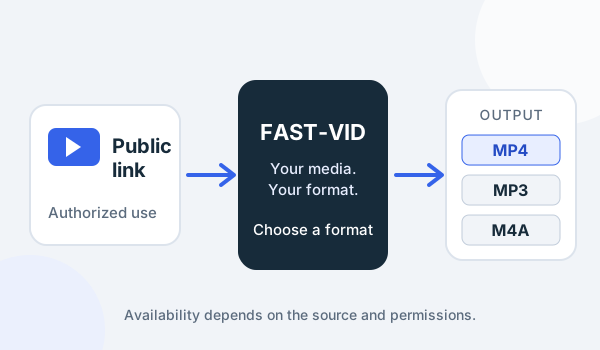
FAST-VID does not upload to a NAS, synchronize a library or back up your files automatically. Its final MP4, MP3 or conditional M4A output is a local file once your browser saves it; your own storage and backup rules take over from there.
Frequently asked questions
What is a good folder structure for downloaded videos?
Start with Inbox, Projects or Library, Archive and a separate backup. Add only the subject or project folders you will actually use.
How should I name video files?
Use a descriptive title, an optional YYYY-MM-DD date and a short source or project tag. Keep the extension and avoid reserved characters.
Should I use dates in filenames?
Use dates when chronology matters, and use one consistent format such as YYYY-MM-DD so files sort predictably.
Where should backups go?
Keep a verified copy on a different device or service from the working copy. A second folder on the same disk is not a complete backup.
Does FAST-VID organize or back up my library?
No. FAST-VID prepares a file and your browser saves it locally. Organization and backup are handled by your own tools and storage.
Sources and references
- Microsoft: Naming files, paths and namespaces
- Apple: Organize files in Finder
- Apple: Tag files and folders
- FAST-VID: How much storage space does video need?
- FAST-VID: Renaming video files safely
Try FAST-VID
Open the FAST-VID downloader for a supported public link, then file the saved video in your own Inbox. FAST-VID does not organize, synchronize or back up your library.