Match the file to the projector’s native panel and playback path. MP4 with H.264 video and AAC audio is a common baseline, but a projector may accept only specific profiles, resolutions, frame rates or audio codecs. Manuals and model-specific support pages are more reliable than a generic “MP4 supported” label.
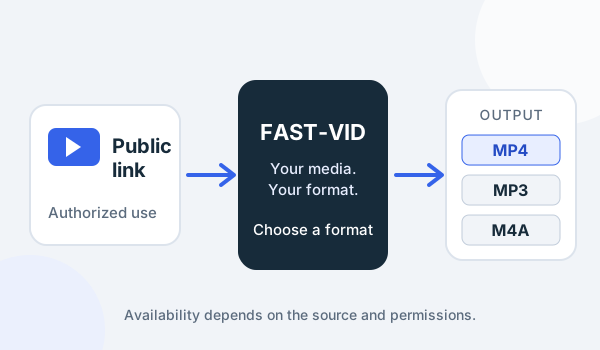
FAST-VID can produce MP4 for supported public links, but it cannot guarantee projector compatibility. It does not resize, edit or convert local files.
Native resolution versus input resolution
A 1080p projector has a native 1920×1080 panel. A 4K projector has a larger native grid. If you send a higher-resolution signal, the projector may accept it and downscale; if you send a lower one, it may upscale. Neither process creates detail that was not in the source.
Some projectors accept 4K input but display at 1080p or use pixel shifting. The specification can distinguish supported input, native panel resolution and processing features. Do not assume that “4K supported” means a native 4K panel.
For a presentation, match the source to the native resolution when possible. A sharp 1080p file often looks better than a heavily compressed 4K file on a 1080p projector.
Aspect ratios and scaling
Projectors commonly handle 16:9, 4:3 and other input ratios through a scaling mode. A mismatched ratio can produce black bars, cropping or geometric distortion. Use the projector’s aspect setting deliberately rather than stretching the image to fill the screen.
If you create a custom presentation, keep important text inside a title-safe area. Keystone correction and lens shift can move the usable image, and a border that looks fine on a laptop may fall outside the projected area.
Test the actual room and screen before the event. A file that fills a monitor may not fill a projector screen without cropping.
Containers and codecs
MP4 is a container, not a guarantee. An Epson support page for one projector model lists H.264 or H.265 in MP4/MOV, with resolution, frame-rate, color-format, audio-codec, bit-depth and channel limits. A BenQ model page lists different supported formats and resolutions. Those examples show why model-specific checks matter.
H.264 High Profile and AAC-LC are common, but old projectors may require Baseline or Main Profile. HEVC may be supported only in specific containers or profiles. Audio can be the hidden failure: a projector may show video but reject AC-3, DTS or multichannel audio.
USB media players can be more limited than HDMI inputs. A laptop connected by HDMI may decode a file the projector’s built-in player cannot. Conversely, a USB file avoids cable and adapter issues.
Brightness, lighting and distance
Projector brightness is usually specified in lumens, but perceived brightness depends on screen size, screen gain, ambient light, lamp or laser mode and content. A large image spreads the same light over more area, reducing apparent brightness.
Dark room conditions usually improve contrast and color. A bright room may require a brighter projector or a more reflective screen. Do not judge a projector only from a small test image in a dark room if the event will be in daylight.
Viewing distance and screen size affect perceived sharpness. A 1080p image can look sharp from a normal seating distance but softer up close. Use the venue’s actual layout for a realistic test.
HDMI, USB and external players
HDMI carries video and audio from a laptop, media player, game console or streaming stick. It is often the most flexible path because the source device handles codecs and subtitles. Check cable version, HDCP requirements and the projector’s HDMI input capabilities.
USB playback uses the projector’s built-in media player. It can be convenient but has its own file-system, size, codec and folder limits. Format the drive as the manual recommends and keep the file structure simple.
A dedicated media player or a laptop gives you more control over playback, captions and audio routing. A streaming stick may require a network and account, which is a different workflow from a local file.
Common playback problems
| Symptom | Likely cause | Check |
|---|---|---|
| No signal over HDMI | Input, cable, resolution or HDCP | Select the correct input, try a known cable, lower the output resolution |
| USB file not listed | File system, folder count or unsupported file | Use a recommended format and a simple folder structure |
| Video plays, no audio | Unsupported audio codec or output route | Try stereo AAC/MP3 or route audio separately |
| Image is cropped | Aspect or overscan setting | Set the projector and source to the same ratio; disable overscan |
| Soft or washed-out image | Scaling, focus, light or source quality | Test native resolution, focus and room lighting |
What FAST-VID can and cannot do
FAST-VID provides MP4 video for supported public links, plus MP3 audio and conditional M4A. The final output is capped at 500 MB. It does not let you choose arbitrary codecs, resize for a projector or convert local files.
A downloaded MP4 still has to match the projector’s supported container, codec, resolution, frame rate and audio. Test the file on the actual projector before the event, and keep a backup copy.
FAST-VID does not bypass DRM, login requirements or access controls. Use content you own or are authorized to present.
A practical pre-event check
Test the exact file, cable, input and projector. Play the opening, a middle section and the ending. Check captions, audio levels, aspect ratio and seeking. Have a second playback device and a spare copy of the file.
Label the final version and keep it separate from the edit master. If the projector rejects the file, use a media player or laptop that supports it rather than converting blindly at the venue.
A practical projector test
Create a short test clip at the projector’s native resolution with the intended audio. Play it through the same HDMI cable or USB drive you will use at the event. Check focus, aspect ratio, volume and seeking.
If the projector has a built-in test pattern, use it to confirm the panel and lens before blaming the file. Keep a second player and a second copy available.
Frequently asked questions
Does a 4K projector always display native 4K?
Not necessarily. Some models accept 4K input but use a lower native panel or pixel shifting. Check the native resolution and input specifications separately.
Is MP4 always supported by projectors?
MP4 is common, but support depends on the container, codecs, profile, resolution, frame rate and audio. Check the model-specific manual.
Why is my USB video not listed?
The file system, folder structure, file size or codec may be unsupported. Use a recommended drive format and test a short compatible file.
Should I use HDMI or USB?
HDMI from a laptop or media player is often more flexible. USB is convenient but depends on the projector’s built-in player.
Does FAST-VID guarantee projector compatibility?
No. FAST-VID offers MP4 output but cannot guarantee codec, resolution or audio support on a particular projector.
Sources and references
- Epson: Projecting from a USB storage device
- BenQ: TK850i USB supported formats
- MDN: Media containers
- FAST-VID: Best video format for a smart TV
Try FAST-VID
Open the FAST-VID downloader for a supported public link. Test the MP4 on the actual projector; FAST-VID cannot guarantee every projector’s codec support.