Check the TV's documented formats first, then choose the simplest route that matches the file. USB is local and direct; casting depends on the app and network; HDMI is flexible but tethers a device; a media player adds its own compatibility list.
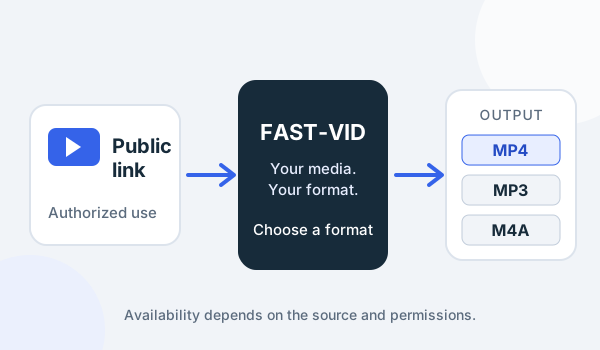
FAST-VID outputs MP4 video and MP3 or conditional M4A audio, but the source codec and the TV's decoder still determine playback. FAST-VID does not transcode after download, add TV codecs or guarantee that a particular TV will play the file.
USB playback is model-specific
Many TVs can play video from a USB drive, but support is not universal. The TV must recognize the drive, read its filesystem, list the file and decode its streams. A TV may show a file and still refuse to play it.
LG, for example, documents USB playback with FAT32 or NTFS formatting, recommends a USB memory device of 32 GB or less and an external drive of 2 TB or less, and warns that supported extensions and codecs vary by model. Roku documents different filesystem and format support for Roku Media Player. These are examples, not rules for every TV.
Check the exact model manual before formatting or buying a drive. Test one short file before copying a whole library.
MP4 container versus video and audio codecs
MP4 is a container, not a codec. A file named .mp4 can contain H.264, H.265/HEVC, AV1 or another video stream, and audio may be AAC, AC-3, E-AC-3 or something else. A TV that supports MP4 may still reject a particular codec, profile, resolution or audio format.
Do not assume every TV supports MP4, H.264, AAC, exFAT or NTFS. Check the model's documented combinations. A file that plays on a computer may need a different audio track or a transcode for the TV.
FAST-VID prepares an MP4 video file, but it does not promise a specific codec beyond what the source and processing produce. If the TV rejects the file, inspect its streams before converting or choosing another playback route.
USB drive filesystem and power limits
| Drive/format | Possible issue | Safe check |
|---|---|---|
| FAT32 | Broad TV support but a file-size limit | Check the TV manual and the video size |
| exFAT | Some TVs support it; others do not | Test with a small sample first |
| NTFS | Support varies by model | Check the format list; do not format without a backup |
| Portable USB drive | May draw more power than the TV port provides | Use a supported drive or powered hub |
The TV may also impose a maximum drive capacity or require a particular partition scheme. A drive that mounts on a computer can be invisible on a TV. If the TV does not recognize it, test the drive on another device and check the model's USB requirements before reformatting.
Casting and its dependency on apps
Casting is not a universal “send any local file to the TV” button. Google Cast works from Cast-enabled apps and supported devices, typically with the phone, tablet or computer on the same Wi-Fi network as the TV or Cast device. The app must support the Cast button, and the content must be allowed to cast.
A local video file may need a media app that supports Cast, a media server such as Plex or Jellyfin, or screen mirroring where the device supports it. DRM-protected content and some apps restrict casting. Do not assume a downloaded file can be cast directly from the Files app on every phone.
Casting can also involve transcoding by the app or server. If the TV cannot decode the file, the server may convert it, which changes the load and may affect quality.
HDMI and external media players
An HDMI connection from a computer gives the TV a display signal rather than asking the TV to decode the file. The computer's player handles the codec, and the TV shows the result. This is often the most flexible route when compatibility is uncertain, but it requires a computer near the TV and a suitable cable or adapter.
A dedicated media player, such as a Roku device with Roku Media Player or a small computer running Plex/Jellyfin, adds another compatibility list. It may support formats the TV does not, but it has its own limits and setup.
For a permanent living-room setup, a media player or media server can be more convenient than moving a USB drive. For a one-off file, HDMI from a laptop may be simpler.
Subtitles and audio tracks
Subtitles can be embedded in the file or supplied as a separate file. The TV or player must support the subtitle format, character encoding and styling. A subtitle that works in VLC may not appear on a TV.
Audio tracks matter too. A file with DTS or another codec may play video without sound on a TV that lacks that decoder. Some TVs pass audio to a receiver; others downmix or reject the track. Check the TV and receiver documentation.
If subtitles or audio fail while the picture works, the container may be fine but the stream support is incomplete. Try a different player or a version with a supported audio/subtitle stream rather than renaming the file.
Troubleshooting unsupported files
| Symptom | Likely layer | Safe next step |
|---|---|---|
| TV does not see the USB drive | Filesystem, capacity or power | Check the model manual; test a smaller compatible drive |
| File is listed but will not play | Codec or profile | Compare the file's streams with the TV's documented formats |
| Picture but no sound | Audio codec or output | Check TV/receiver audio support; try another track |
| Subtitles do not appear | Subtitle format or naming | Check the TV's supported subtitle formats and file name |
| Cast button is missing | App does not support Cast | Use a Cast-enabled app, media server or HDMI |
| Playback stutters | Bitrate, USB speed or network | Try local USB or a lower-bitrate file |
If a TV asks you to install an unknown app or accept a profile to play a video, stop. Use the manufacturer's official app store and documented media routes.
When transcoding or a dedicated player helps
Transcoding converts the file to a format the TV can decode. A media server such as Plex or Jellyfin can do this automatically, subject to its hardware and settings. A dedicated player may direct-play formats the TV cannot. A computer connected by HDMI can use a player with broader codec support.
Transcoding is not free: it consumes CPU or GPU resources and may reduce quality or add latency. FAST-VID does not transcode the saved file, and it does not provide a TV app. If your library regularly needs conversion, a media server or a player designed for the TV may be a better long-term solution.
Keep the original file. A converted copy is an additional version, not a replacement for the source.
Frequently asked questions
Can I play any MP4 on my TV?
No. MP4 is a container; the TV must support the video and audio codecs inside, plus the resolution and profile. Check the model manual.
Why does the TV show the file but not play it?
The TV may not decode the codec, audio format or profile. The container and extension alone do not guarantee playback.
Can I cast a local video from my phone?
Only if the app supports Cast or you use a compatible media server or screen-mirroring route. Casting is not a universal direct-file feature.
Which USB format should I use?
It depends on the TV. FAT32, exFAT and NTFS support varies by model, and FAT32 has a file-size limit. Check the manual before formatting.
Does FAST-VID transcode for my TV?
No. FAST-VID prepares an MP4 file; it does not convert it for a specific TV or guarantee codec compatibility.
Sources and references
- LG: Supported video codecs for USB devices
- LG: Connect a USB storage device to your TV
- Roku: Roku Media Player and USB formats
- Google Cast Help: Cast media from supported apps
- FAST-VID: MP4 format explained
Try FAST-VID
Open the FAST-VID downloader for a supported public link, then move the saved MP4 to a TV-compatible route. FAST-VID does not guarantee a TV codec or provide a native TV app.