Choose the file the TV can decode, not the format with the best-sounding acronym. MP4 and MKV are containers; H.264, HEVC, AV1, AAC, AC-3 and DTS are the streams inside them. A TV that accepts MP4 may still reject a particular codec, profile, resolution, audio track or subtitle format.
This guide focuses on format compatibility. For USB setup, casting, HDMI and general playback routes, use the practical TV playback guide linked below.
There is no single best format
The safest general answer is MP4 with H.264 video and AAC audio. It is the combination most likely to play across TVs, phones, computers and browsers. That does not make it universal, and it does not mean every H.264/AAC MP4 will work on every set.
MP4 versus MKV on a smart TV
MP4 is the broader compatibility choice. TVs, phones, browsers and media players commonly accept it, and H.264/AAC in MP4 is a conservative delivery combination. MP4 can also contain HEVC, AV1 or other streams, but the TV must support that stream and its profile.
MKV is more flexible for multiple audio tracks, subtitles, chapters and attachments. Some TVs support MKV, especially through USB or a local media player, but support is less consistent than MP4. A TV that lists MKV may still reject an unusual codec, image-based subtitle format or multichannel audio track. For the full container comparison, see MP4 vs MKV.
H.264, HEVC and other video codecs
H.264/AVC has the widest practical support and is the safest video codec for an older or unknown TV. HEVC/H.265 is common on 4K TVs and can deliver similar quality at a lower bitrate, but profile and level support vary. A TV may handle 4K HEVC at 30 fps but not at 60 fps, or accept one profile while rejecting another.
AV1 and VP9 are more common in web video than in television playback. Some recent TVs support AV1; many older sets do not. VP9 may appear in WebM or certain streaming formats, but a TV’s codec list is the authority for that model.
Audio codecs and multiple tracks
AAC stereo is the most broadly compatible audio choice for TV playback. MP3 is also widely accepted. AC-3 and E-AC-3 are common in surround content and may be supported directly, passed through to a receiver or downmixed, depending on the TV and its audio settings.
DTS is less predictable. A TV may play the picture but produce no sound if it cannot decode the track and cannot pass it through. Multichannel audio can also fail when the TV expects stereo, even though the video codec is supported.
Multiple audio tracks add another layer. The TV may expose only the default or first track, ignore language flags, or provide no track menu. A file with a compatible video stream can still fail because the selected audio stream is not supported. For track-level detail, see Video and audio tracks explained.
Subtitles and multiple-track limitations
Subtitles can be embedded streams or separate files. Embedded text formats such as SRT or WebVTT are more portable than image-based formats, but the TV must still support the renderer and styling. PGS and VobSub are image subtitle formats that many TVs do not handle.
External subtitles are separate from the video container. A TV may load a sidecar file only if the filename matches, the encoding is supported and the player has a subtitle option. Burned-in subtitles are part of the picture and cannot be turned off or removed as a track.
Resolution, frame rate and bitrate
A 4K TV does not automatically play every 4K file. The relevant combination is resolution, frame rate, codec, profile, bit depth and bitrate. A set may accept 3840 × 2160 at 30 fps but struggle with 60 fps, or play a lower-bitrate stream while stuttering on a very high-bitrate one.
Common delivery frame rates are 24, 25, 30, 50 and 60 fps. Some TVs handle film-style 24 fps well but show judder or unsupported-mode messages for high frame rates. Variable frame rate files can also confuse a TV’s media player, even when the nominal rate looks supported.
Why an MP4 can still fail on a particular TV
MP4 is a container, not a compatibility certificate. A file can fail because its video codec is HEVC while the TV supports only H.264, or because the HEVC profile is too new. It can fail on audio because the TV lacks the AC-3 or DTS decoder. It can fail on subtitles, HDR metadata, resolution, frame rate or bitrate.
A file that plays on a phone or computer may use a software decoder the TV does not have. A browser may transcode or remux behind the scenes. A USB player usually cannot. That is why “it plays on my laptop” is not evidence that the TV will accept it.
How to check the TV’s supported formats
Find the exact model number and firmware version, then open the manufacturer’s support page or manual. Look for the video and audio codec table, supported containers, resolution and frame-rate limits, subtitle formats and any HDR requirements. A retailer’s summary or an old forum post may be out of date.
Check the input path too. A TV’s USB player, DLNA client and HDMI input can have different limits. A set may support a format through an external media player but not through its built-in player. The manual should distinguish these cases.
Prepare one short test file with the intended codec, audio track and subtitle, then play it on the TV before converting a library. Test a dark scene, a motion scene and the subtitle timing. If it fails, identify which stream is unsupported rather than changing the extension.
Practical compatibility troubleshooting
Work from the file outward: inspect the streams, compare them with the TV’s documented support, then test the simplest compatible combination. Do not start by renaming the file or installing an unknown codec pack.
| Symptom | Likely layer | Practical check |
|---|---|---|
| File is listed but will not play | Video codec, profile or container | Compare the video stream with the TV’s codec table |
| Picture works, no sound | Audio codec or selected track | Check AAC/AC-3/DTS support and try another audio track |
| Subtitles do not appear | Subtitle format or sidecar naming | Check embedded versus external format and the TV’s menu |
| Stutter or unsupported mode | Resolution, frame rate or bitrate | Try a lower-bitrate or lower-frame-rate test file |
Use FFprobe or MediaInfo when the TV’s media screen is unclear.
What FAST-VID provides
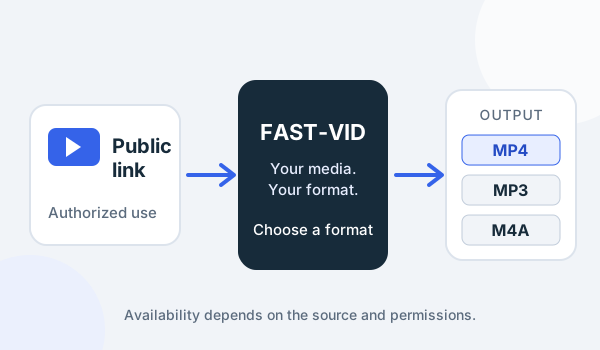
FAST-VID produces MP4 video for supported public links, plus MP3 audio and conditional M4A audio. It does not output MKV, MOV, WebM, FLAC or ALAC, and it does not expose arbitrary codec, bitrate, resolution, HDR, frame-rate, subtitle or track controls.
The MP4 output is source-dependent. Selecting MP4 does not guarantee that the codec inside will be H.264 or that a particular TV will play it. FAST-VID does not convert local files, does not create TV-specific versions, and does not guarantee smart-TV compatibility.
Frequently asked questions
Is MP4 the best format for a smart TV?
It is the safest common starting point, especially with H.264 video and AAC audio. It is not a guarantee: the TV still has to support the codec, profile, resolution, audio track and subtitle format inside the file.
Will MKV play on my smart TV?
Some TVs support MKV through their built-in player; many do not, or support only certain codecs and subtitle formats. Check the exact model manual or test a short file. The MKV extension alone does not guarantee playback.
Why does an MP4 file fail if my TV supports MP4?
MP4 is only the container. The TV may reject the video codec or profile, the audio codec, the subtitle format, the resolution or frame rate, the HDR metadata or the bitrate. Inspect the streams rather than only the extension.
Which audio codec is safest for TV playback?
AAC stereo is the most broadly compatible choice, with MP3 also common. AC-3, E-AC-3 and DTS support varies, and multichannel audio may fail even when the video plays.
Does FAST-VID guarantee that its MP4 will play on my TV?
No. FAST-VID outputs source-dependent MP4 video but does not control the codec inside or the TV’s decoder. It does not provide codec, track, subtitle or TV-specific conversion controls.
Sources and references
- Samsung: Play media files from USB devices
- LG: Playing videos from a USB device
- Android: Supported media formats
- MDN: Media container formats
- Matroska: Technical basics
- FFmpeg documentation
- FAST-VID: Playing downloaded videos on a TV
Try FAST-VID
Open the FAST-VID downloader for a supported public link. MP4 output is source-dependent and does not guarantee smart-TV compatibility; inspect the file and test it on the exact TV.