“The video has no sound” or “the subtitles disappeared” often means the player selected the wrong track, not that the file is broken. A single file can carry several languages, commentary, forced subtitles and signs, each as a separate stream with its own codec and metadata.
This guide explains the track layer itself. FAST-VID does not expose arbitrary track selection or subtitle extraction, and it does not guarantee that every source track survives processing.
What a track is
A video file is a package, not a single stream. The container indexes a video track, audio tracks and optional subtitle or caption tracks. Each track has a codec, timing information and metadata such as language, title and a default or forced flag.
The video track supplies the pictures. An audio track supplies sound; a film may have several language dubs, a commentary track, a stereo mix and a surround mix. A subtitle track supplies timed text or images that the player overlays on the picture.
The container is not the codec. An MP4 or MKV file can contain different video codecs, audio codecs and subtitle formats. Seeing the extension does not tell you which tracks are inside.
Multiple audio tracks and default audio
A file can contain several audio tracks with language tags such as English, Spanish or Japanese. A track may be a dub, an original-language mix, a commentary or an audio-description track. The container can mark one track as default, but that flag is a preference, not a universal instruction.
Players may honour the default flag, remember the last language you chose, follow the system language, or simply play the first audio stream. Some televisions and mobile players expose no audio-track menu at all. That is why the same file can start in different languages on different devices.
Multiple tracks also increase size. A second lossless or surround track can be large even when the video is unchanged. If a file is larger than expected, inspect the audio streams before blaming the video codec.
Soft subtitles versus burned-in text
A subtitle stream is separate from the picture. The player renders it, which allows it to be switched off, styled, repositioned or shown in a different language. This is often called a soft subtitle.
Burned-in subtitles, sometimes called hardsubs, are pixels in the video frame. They cannot be turned off or separated from the picture. If the text is part of the image, no subtitle track exists to select, extract or restyle.
A subtitle stream is also not automatically a text file. Some tracks are image-based, such as PGS or VobSub, and require a player that can render that format. Text formats such as SRT, ASS/SSA and WebVTT are more flexible but still depend on the player’s renderer and font support.
Embedded versus external subtitle files
Embedded subtitles live inside the container as a track. External subtitles are separate files, such as an SRT or ASS file placed next to the video. A player must be told to load the external file, and naming conventions vary by app.
External files are easy to edit and replace, but they can get separated from the video when files are copied. Embedded tracks travel with the file, but changing them requires remuxing or re-authoring.
Language tags and filenames are hints, not guarantees. A file named “English.srt” can contain another language, and a track tagged “eng” can be mislabelled. Check the content, not only the label.
Container support for tracks and subtitles
MP4 and MKV both support multiple audio tracks and subtitles, but their practical flexibility differs. Matroska is designed for track-rich files, chapters, attachments and a broad range of subtitle formats. MP4 is more widely played, but consumer devices may expose fewer tracks or reject a subtitle format.
A device that supports the container may still fail on one stream. A TV might play the video and one audio track while ignoring a second language, or show a subtitle menu but refuse an image-based subtitle format. The decoder and renderer matter as much as the container name.
For the container-level comparison, see MP4 vs MKV. The table below is a starting point, not a device guarantee.
| Situation | What it may mean | What to check |
|---|---|---|
| Only one language appears | Player chose the default track | Open the audio-track menu; check the default flag |
| Subtitles missing | No subtitle track, unsupported format or disabled display | Inspect streams; try another player |
| Text cannot be turned off | Burned-in subtitles | Look for a subtitle stream; if absent, the text is in the picture |
| Video plays, no sound | Unsupported audio codec or selected track | Try another track or a player with the decoder |
| Track list differs by device | Player/container support varies | Compare with a desktop player and inspect metadata |
Why a player shows only one track or no subtitles
The most common reason is selection, not loss. A player may automatically choose the default audio, the first stream or the system language. It may hide tracks it cannot decode, or its interface may have no track button.
Container and codec support are the next checks. An MKV with several subtitle formats may be fully supported on a desktop player and only partly supported on a TV. A transcode or remux may also have kept only one audio track or dropped subtitles even though the original file had them.
Finally, the file may genuinely contain only one track. A platform may serve a single-language audio stream, and a download may not preserve every track the source page mentioned. Do not assume that a language menu exists just because the original production had multiple languages.
How to inspect track metadata
Use an established media inspection tool. FFprobe can list streams with their codec, language, title and disposition flags; MediaInfo presents similar information in a friendlier interface. Look for the stream index, codec type, language and default/forced markers.
For example, a command such as ffprobe -show_streams -show_format yourfile.mp4 reports the stream list without playing the file. Compare the audio and subtitle stream counts with what your player shows. If the file has three audio streams and the player offers one, the issue is likely player selection or support.
Inspect the original and the converted copy separately. A converter may change stream order, drop a track or turn a subtitle stream into something else. Metadata is evidence, but playback testing is still required.
Moving files between devices
A file that works on a computer may behave differently on a phone, TV or media player. The destination may support the container but not a particular audio codec, subtitle format or number of tracks. It may also ignore language and default flags and choose the first stream.
For a simple viewing copy, an MP4 with one compatible audio track and optional text subtitles is the least risky package. For an archive, keep the richer original and accept that some devices will need a different copy or a media server that can transcode.
Do not rename a file to change its tracks. Renaming changes the label, not the streams. Use a remux or transcode tool when the destination needs a different container or codec, and keep the original until the new copy is verified.
What FAST-VID does and does not provide
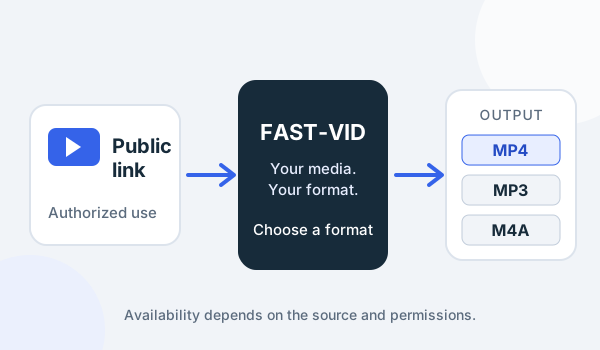
FAST-VID produces MP4 video for supported public links, plus MP3 audio and conditional M4A audio. It does not expose arbitrary audio-track selection, subtitle extraction, subtitle conversion or track remuxing.
The source and supported processing path determine what the output contains. FAST-VID does not guarantee that every source audio track, language or subtitle stream survives a download, and it does not promise that a player will expose all remaining tracks.
If track layout matters, inspect the output and use a dedicated media tool for any further remuxing. FAST-VID is not a general-purpose media converter or subtitle editor.
Frequently asked questions
What is the difference between an audio track and a subtitle track?
An audio track carries sound, such as a language dub or commentary. A subtitle track carries timed text or images that the player overlays on the picture. They are separate streams inside the container.
Why does my video play in the wrong language?
The player may be following a default-language flag, the first stream or your system language. Open the audio-track menu if available and check the stream metadata.
Are embedded subtitles the same as burned-in subtitles?
No. Embedded subtitles are a separate selectable stream. Burned-in subtitles are pixels in the video image and cannot be turned off or extracted as a track.
Why does my TV show only one audio track?
The TV may not expose a track menu, may ignore the default flag, or may not decode the other audio codecs. Check the file with a desktop player or FFprobe to see whether the tracks exist.
Does FAST-VID let me choose or extract audio and subtitle tracks?
No. FAST-VID does not expose arbitrary track selection, subtitle extraction or remuxing, and it does not guarantee that every source track survives processing.
Sources and references
- Matroska: Technical basics
- Matroska: Subtitles
- FFmpeg: Stream selection and mapping
- FFmpeg: ffprobe documentation
- MDN: Media container formats
- FAST-VID: MP4 format explained
Try FAST-VID
Open the FAST-VID downloader for a supported public link. Track and subtitle availability depends on the source; FAST-VID does not provide arbitrary track selection or subtitle extraction.