Decide whether you need a shared folder, a second copy or a long-term archive before choosing a provider. Cloud storage is a place to keep files; synchronization keeps devices in step; backup preserves a separate copy you can restore. The same service can offer all three, but they behave differently.
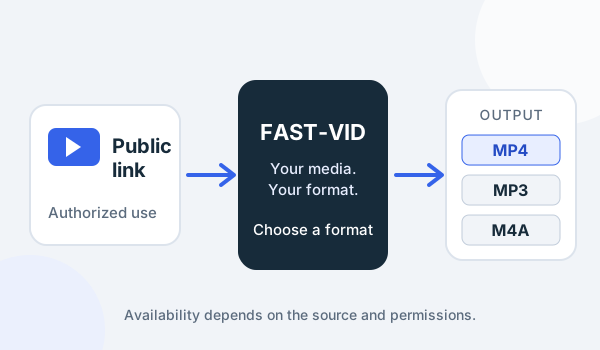
FAST-VID does not upload to cloud storage, synchronize a folder or back up a library. It prepares a supported public-link file that your browser saves locally. This guide covers what happens after that file exists.
Storage, sync and backup are different
Cloud storage is capacity on a remote service. Sync keeps a local folder and a cloud folder aligned: adding, changing or deleting in one place is reflected in the other. Backup is a separate copy designed for restoration after loss, corruption or accidental deletion.
| Model | What it does | Main risk |
|---|---|---|
| Cloud storage | Holds files remotely for access or sharing | Quota, account loss or provider dependency |
| Sync | Mirrors changes between devices and cloud | A deletion or bad edit can propagate |
| Backup | Keeps a separate restorable copy | Only useful if it is tested and protected |
Apple explicitly separates iCloud syncing from iCloud Backup: data that syncs through iCloud Drive or iCloud Photos is kept up to date across devices, while device data that does not sync can be included in a periodic backup. Microsoft describes OneDrive as syncing files between a computer and the cloud, with deletions and changes reflected in both directions. Google Drive also offers file versions and sharing, but sync and version history are not the same as an independent backup.
A synchronized file is not automatically a second copy. If malware, a mistake or a lost device deletes the local file and the deletion syncs, the cloud copy may also disappear.
Quotas, upload limits and plan changes
Cloud plans change. Free tiers, paid storage, maximum file size, upload speed and sharing limits vary by provider and account type. Do not choose a service from an old screenshot or a single “best cloud storage” list.
Check the current quota, what counts against it, and whether shared files, deleted items, versions or backups consume space. A large video library can exhaust a free tier quickly, and a full account can stop syncing or uploading without deleting the local original.
Provider-side upload and download limits can also matter for very large files or slow connections. The limits are account- and plan-specific; verify them in the provider's current documentation before moving a library.
Sync conflicts and duplicate files
When two devices change the same file before syncing, the service may keep one version and create a conflicted copy, rename one file, or ask you to choose. The exact behavior differs by client and file type.
Videos are especially prone to conflict because they are large, often edited in place, and may be open on two devices. Close the file before copying it, use a new filename for exports, and avoid editing the same project on two machines at once.
If duplicate copies appear, compare dates, sizes and checksums where possible before deleting either one. A file with “(1)” or “conflicted copy” in its name may be the only complete version.
Sharing permissions and public links
Cloud providers let you share a file with specific people, a group, or anyone with a link. A public link is convenient but can be forwarded, indexed or downloaded by someone you did not intend to reach. Use the least access that solves the task.
Review whether recipients can view, comment or edit; whether downloads are allowed; whether the link expires; and whether a password is available. Remove access when the project ends. Do not put confidential or licensed material in a public folder just because the provider makes sharing easy.
Sharing a folder is not the same as sending a copy. Changes and deletions may affect everyone with access, and a recipient's copy may be outside your control.
Encryption and account security
Most major providers encrypt data in transit and at rest, but “encrypted” does not necessarily mean end-to-end encrypted or invisible to the provider. Encryption details, key management and account recovery vary. Check the current security documentation for the specific service and plan.
Protect the account with a strong unique password, multi-factor authentication and recovery options you control. Review active sessions and connected apps. A shared folder is only as secure as the accounts that can access it.
For sensitive videos, consider encrypting a container before upload or using a service whose threat model matches your needs. Do not assume a provider's default sharing setting is private.
Version history and retention
Version history can rescue an overwritten file or a bad edit, but it is not unlimited or permanent. OneDrive documents a 30-day version history for personal accounts, subject to plan and administrator settings. Google Drive keeps recent versions of some files unless you choose “Keep forever,” and Google Docs editors have a different history model. iCloud's syncing and backup behavior depends on the service and device settings.
Version retention can change, and deleted items may expire. Do not use version history as your only backup. Keep an independent copy that is not subject to the same sync and retention rules.
A version history is also not a guarantee that every file type is versioned in the same way. Check the provider's current documentation for the file type and account you use.
Privacy trade-offs
Cloud storage moves control to a provider. The provider may process metadata, scan content for abuse or malware, or respond to legal requests under its terms and applicable law. Encryption, jurisdiction, retention and employee access differ.
Sync also reveals file names and folder structure to the service, even if content is encrypted. Sharing links can be forwarded. Account recovery can be a security weakness if an attacker controls the email or phone number.
For personal videos, the trade-off may be acceptable. For confidential work, licensed media or material involving other people, review the provider's terms and your own obligations before uploading.
When local or external storage is better
Use a local drive when you need fast access, predictable cost, no upload wait or control over the physical copy. Use an external drive or NAS for a large library that several devices access on a local network. Use cloud storage for off-site access, sharing and an additional copy, not as the only copy.
A practical pattern is local working files plus an external backup plus a cloud or off-site copy. That is a strategy, not a guarantee. Test a restore and keep the formats readable.
FAST-VID's job ends when the browser saves the MP4, MP3 or conditional M4A file. It does not upload to Drive, OneDrive or iCloud, manage synchronization or promise that a cloud copy is a backup.
Frequently asked questions
Is cloud sync a backup?
Not automatically. Sync mirrors changes, including deletions. A backup should be a separate restorable copy with its own retention.
Which cloud provider is best for videos?
There is no universal winner. Compare current quotas, file-size limits, sharing, version history, encryption and price for your account and region.
Does version history keep files forever?
No. Retention varies by provider, plan and file type. OneDrive documents 30 days for personal accounts; other services differ.
Are cloud videos private?
Not necessarily. Providers may encrypt data but still access metadata or content under their terms. Review the current policy and use least-privilege sharing.
Can FAST-VID upload to my cloud drive?
No. FAST-VID downloads a supported public-link file to your browser. Uploading and syncing are separate steps you perform.
Sources and references
- Google Drive Help: Check activity and file versions
- Microsoft: Restore a previous version of a file in OneDrive
- Microsoft: Sync files and folders with OneDrive
- Apple: What does iCloud back up?
- FAST-VID: Backing up a video library
Try FAST-VID
Open the FAST-VID downloader for a supported public link, then move the saved file to your own storage. FAST-VID does not upload to cloud storage, sync folders or create backups.