Download the video in Chrome, then open the Files app and look in Downloads. From there you can open, move or copy the file. If you use the Linux development environment, its files live in a separate container, and Linux apps do not automatically receive access to every ChromeOS folder.
FAST-VID is a public-link downloader, not a ChromeOS extension. Chrome controls the local save location and Files manages the copy on your device. This guide separates ordinary Chromebook downloads from Linux container storage and explains the limits.
Download through Chrome
Open the supported public page in Chrome and use its download control. Chrome saves the file to its configured download folder. On ChromeOS, Google documents Downloads as a temporary folder on the Chromebook's hard drive, and it can be changed in Chrome settings.
To check or change the location, open Chrome > More > Settings > Downloads. Select Change to choose a folder, or enable Ask where to save each file before downloading. The exact layout can vary with ChromeOS and Chrome versions.
If you asked Chrome to prompt for a location, choose a folder in Files that you can find again. Do not save into a read-only system folder or a temporary location you will forget.
Find and manage the file in Files
Open the Files app from the Launcher. Under My files, select Downloads. If you changed the download folder, open that folder instead. Double-click the file to open it, or use the context menu to rename, copy, move or delete it.
Files also shows Google Drive, external devices and, when enabled, Linux files. These are separate locations, not different views of one shared folder. Moving a file between them copies data and can take time for a large video.
| Location | What it is | Typical use |
|---|---|---|
| Downloads | ChromeOS local folder, described by Google as temporary | Everyday browser downloads |
| Google Drive | Cloud storage shown in Files | Files you want available on other devices |
| SD card or USB drive | External storage mounted in Files | Extra space and transferable media |
| Linux files | Storage inside the Linux development environment | Linux apps and container work |
SD cards, USB drives and external storage
When you connect a supported SD card or USB drive, it appears in the Files sidebar. You can copy a downloaded video to it, or choose it as a Chrome download location if Chrome and ChromeOS offer that folder in the picker.
Before removing the drive, use the eject control in Files. Removing storage during a write can corrupt the file or the filesystem. External drives may need a compatible adapter, enough power and a supported format; ChromeOS may offer to format an unrecognised drive, which erases it.
Android apps can be given access to external storage through Settings > System preferences > Storage management > External storage preference. That setting applies to Play Store apps, not automatically to Linux apps.
Linux apps and the container boundary
The Linux development environment is an optional Debian container. Its home folder is not the same as ChromeOS Downloads. Enabling Linux does not give every Linux app access to every ChromeOS folder.
To share a folder, right-click it in Files and choose Share with Linux. ChromeOS then makes that shared folder available inside the container, commonly under /mnt/chromeos; the exact subpath and mount behaviour can vary. Google states that permissions and files shared with Linux are available to all Linux apps in that environment.
If you only need to watch a video, use the ChromeOS player or a supported app instead of moving it into the container. If a Linux app must process it, copy it into Linux files or share the specific folder, then check the app's file picker. Do not assume a Windows-style drive letter or a ChromeOS path will work unchanged.
Linux container storage counts against the Chromebook's available space. Installing packages and keeping large media in both Downloads and Linux files can consume space twice.
Storage limits and safe cleanup
ChromeOS devices often have limited local storage. Google notes that ChromeOS may remove downloaded files to free space, so Downloads is not a permanent archive. Keep important files in Google Drive, on an external drive or on another device you control.
Use Settings > System preferences > Storage management to see what is using space. In Files, check Downloads, Linux files, Play files and any external drives. Delete only files you recognise. Emptying Downloads does not automatically remove copies in Drive, Linux files or the trash.
If Linux reports no space, check the container's disk usage with normal system tools and remove old packages or media you created. Do not delete system directories to make room. If a download consistently fails near the end, free space first and retry.
Playback and compatibility
ChromeOS can play many common video files, but support depends on the container, codec, profile and the app you use. An MP4 file is a container, not a guarantee that every H.264, H.265 or AV1 stream will play. A Linux player may support a different set of codecs from the ChromeOS player.
If the file opens but has no picture or sound, try another compatible player before downloading again. If the file is incomplete, compare its size with the source and retry. Do not install an unknown codec pack from an unofficial site.
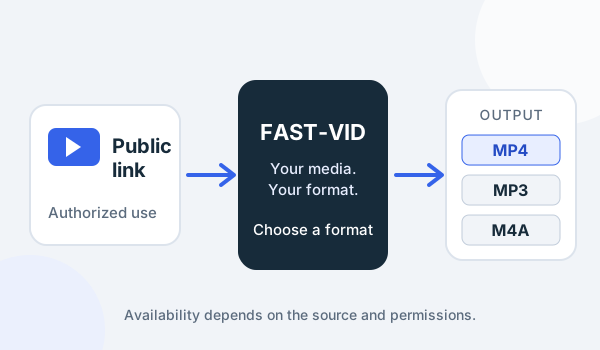
FAST-VID outputs MP4 video, plus MP3 or conditional M4A audio, with a 500 MB final-output limit. It does not change ChromeOS file permissions, install codecs or make a Linux app see a folder it was not granted.
Chromebook download troubleshooting
| Symptom | Check first | Safe next step |
|---|---|---|
| File is not in Downloads | Chrome Settings > Downloads | Open the folder shown there in Files |
| Download stops near the end | Free space and drive connection | Free space, then retry once |
| Linux app cannot see the file | Whether the folder was shared | Use Share with Linux or copy it into Linux files |
| SD card is not visible | Adapter, power and format | Reconnect; do not format without a backup |
| Video has no sound | Player and codec support | Try a supported player; do not guess at the file type |
| File disappeared later | ChromeOS storage cleanup | Keep a second copy outside Downloads |
If a site asks you to install an extension, a profile or an unknown APK just to save a video, stop. Those are not normal ChromeOS download steps.
Frequently asked questions
Where do Chromebook downloads go?
Chrome usually saves them in Downloads, which you can open in the Files app. Check Chrome Settings > Downloads if the location was changed.
Are Chromebook Downloads permanent?
No. Google describes Downloads as a temporary folder on the local drive, and ChromeOS may remove files to free space. Keep important files in another location.
Can Linux apps see my Chromebook Downloads?
Not automatically. Share the specific folder with Linux in Files, or copy the file into Linux files. Shared folders are available to all Linux apps.
Can I download to an SD card?
You can copy files to a supported SD card in Files, and Chrome may offer it as a download location. Support depends on the device and card format.
Why will a downloaded video not play?
The file may be incomplete or use a codec the current player does not support. Try a compatible player before downloading it again.
Sources and references
- Google Chromebook Help: Open, save or delete files
- Google Chromebook Help: Set up Linux on your Chromebook
- Google Chrome Help: Download a file on a computer
- Google Chromebook Help: File types and external devices
- FAST-VID: How much storage space does video need?
Try FAST-VID
Open the FAST-VID downloader in Chrome on your Chromebook, then use Chrome's own download prompt. FAST-VID does not change ChromeOS storage, grant Linux access or stop ChromeOS cleaning temporary Downloads.