Check the browser's download settings first, then look in the folder it shows. Firefox and Chrome/Chromium both let you choose a default folder or ask for each file. On Linux, that folder is often defined through XDG user directories, so a localized desktop may not use the literal English word Downloads.
This guide is distribution-neutral. Commands are optional and assume a normal user account. FAST-VID is a public-link downloader, not a package or browser extension; it does not change file permissions, codecs or your desktop settings.
Firefox and Chrome download workflows
In Firefox, open Settings > General and find Downloads under Files and Applications. The Save files to entry shows the current folder, and Browse or Choose changes it. Firefox can also ask where to save each file.
In Chrome or Chromium, open Settings > Downloads. Select Change to choose the default folder, or enable the option to ask before each download. Chrome's documented Linux default is /home/<username>/Downloads when the setting has not been changed.
Download through the page, then use the browser's Downloads page to confirm completion. A browser download list is a record, not a guarantee that the file is in the folder you expect.
XDG user directories and why paths vary
Many Linux desktops use the XDG user-directories convention. The download folder is normally defined by XDG_DOWNLOAD_DIR in ~/.config/user-dirs.dirs. The default is commonly $HOME/Downloads, but it can be changed, localized or pointed somewhere else.
This means “the Downloads folder” is not a universal absolute path. Check the browser setting or ask the desktop session for the configured directory. The command xdg-user-dir DOWNLOAD is optional and works only when xdg-user-dirs is installed.
To inspect the folder and its permissions without changing anything, use ls -ld "$(xdg-user-dir DOWNLOAD)". If the command is unavailable, use the file manager's address bar or the browser's download settings instead.
File managers across desktop environments
GNOME Files (Nautilus), KDE Dolphin, Xfce Thunar, Cinnamon Nemo and other file managers present the same filesystem differently. The path is the same, but the sidebar label, hidden-file toggle and context menu can differ. Do not assume a menu item from one desktop exists in another.
Open the browser's Show in Folder action when available; it asks the desktop to reveal the file in the default file manager. If that action is missing, open the configured folder manually. Press Ctrl+L in many file managers to type a path, though this shortcut is not universal.
Hidden files begin with a dot. Download folders normally are not hidden, but configuration files under ~/.config are. Do not delete hidden application data to fix a download problem.
Sandboxed browser packages may use a desktop portal instead of direct access to every folder. If the browser cannot see a path, use the save dialog it provides rather than weakening the sandbox.
File and directory permissions
A download can fail because the destination directory is not writable by your user, because the disk is full, or because the file was saved by another account. Check ownership and mode before changing anything. The exact output differs by system, but ls -ld and stat show the directory and file metadata.
If the file belongs to you and lacks write permission, adding owner write permission is a narrow fix: chmod u+rw <file>. Do not use chmod 777 or run a downloaded program with sudo to solve a permission problem. Elevated privileges turn a file-access issue into a security risk.
If the folder belongs to root or another user, choose a folder you own instead of changing system ownership. If the filesystem is mounted read-only or the drive is full, fix the mount or free space. Do not disable system security features to force a save.
If the file was created by your user but a restrictive umask removed write access, changing only that file is usually enough. Avoid recursively changing a whole home directory; that can break desktop configuration files.
Playback, codecs and sandboxed packages
An MP4 file can contain H.264, H.265, AV1 or another codec. Linux distributions differ in which codecs are installed by default, and Flatpak or Snap packages may ship a different runtime from a distribution package. A file that plays in one player can fail in another.
Try a player known to support the codec, or install codec support from your distribution's official repositories. Do not download a random binary codec pack. If the file is incomplete, compare its size with the source and download it again instead of installing more software.
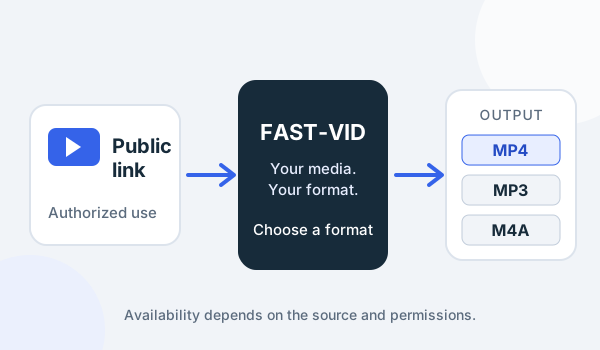
FAST-VID outputs MP4 video, MP3 audio and conditional M4A audio, with a 500 MB final-output limit. It does not convert codecs after download or guarantee that every Linux player supports the source codec.
Some distributions separate patent-encumbered codecs or place them in optional packages. Use the distribution's official repository and documentation, and avoid unofficial binaries that ask for root access.
Safe Linux download troubleshooting
| Symptom | Check first | Safe next step |
|---|---|---|
| File is not in ~/Downloads | Browser download setting and XDG path | Open the folder the browser shows |
| “Permission denied” | Directory owner and mode | Choose a folder you own; do not use sudo |
| Disk full | Free space and quota | Remove files you created, then retry |
| File is incomplete | Browser progress and file size | Wait, then download again |
| No video or audio | Player and codec support | Try a supported player or distro package |
| Browser cannot see a folder | Sandbox or file-picker permission | Use the browser's prompt or a shared folder |
If a site asks you to paste a command into a terminal, install a package from an unknown URL or run a downloaded file as root, stop. That is not a normal browser download step.
Frequently asked questions
Where do downloads go on Linux?
They go to the folder configured in Firefox or Chrome, commonly ~/Downloads or the XDG download directory. Check the browser settings for the exact path.
Why is there no Downloads folder?
The folder may be localized, renamed or defined elsewhere by XDG user directories. The browser settings show the actual configured location.
Can I change the download folder?
Yes. Firefox uses Settings > General > Downloads; Chrome uses Settings > Downloads. Both can ask for a location per file.
Why can I not open the video?
The player may lack the codec, the file may be incomplete, or the container may be unsupported. Try another player before downloading again.
Should I use sudo to fix permissions?
No. Choose a folder you own or correct your own file permissions. Running downloaded media or programs with elevated privileges is unsafe.
Sources and references
- freedesktop.org: XDG Base Directory Specification
- freedesktop.org: xdg-user-dirs
- Mozilla: Where to find and manage downloaded files
- Google Chrome Help: Download a file on a computer
- Linux man-pages: chmod(1)
Try FAST-VID
Open the FAST-VID downloader in Firefox or Chrome/Chromium on Linux. FAST-VID does not change XDG folders, file permissions, codec packages or desktop settings.