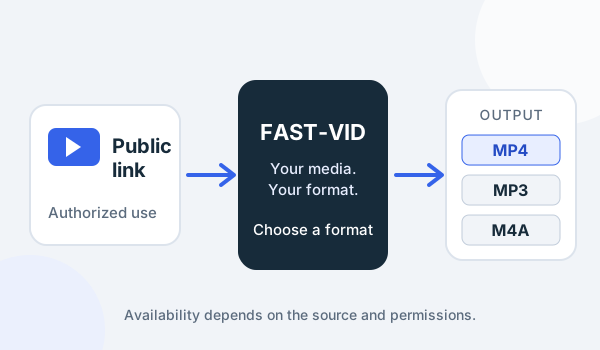
Many downloader programs ask you to install an application, grant broad device permissions and keep the software updated. A browser-based tool removes that installation step. You open a page, use the interface and save the file through the browser's normal download system.
That convenience has a trade-off. The website still has to process the link somewhere. FAST-VID does the work on its server: the worker contacts the source, prepares a temporary file and sends it to your browser after the job is complete. Your device does not run yt-dlp, FFmpeg or a local media service. Understanding that boundary is the key to using the tool safely.
What “without installing software” means
FAST-VID is a website. You do not install a desktop app, mobile app, browser extension or background service. You use a modern browser with JavaScript enabled. The browser receives a session cookie, calls the FAST-VID API and saves the completed file when you choose a format.
“No install” does not mean “no processing.” It means the processing happens on the server instead of your device. It also does not mean every file type will play automatically; playback still depends on your browser, operating system, codecs and apps. The site can request a download, but it cannot install a codec or take over your local storage.
FAST-VID does not require an account. The anonymous browser session keeps jobs and file links associated with the browser, and the short-lived download token authorizes the save. No platform login or source-platform cookie is imported.
The browser workflow
1. Copy a public link
Start with content you own or are authorized to download. Copy the direct public video or post URL. The link must be accessible without your platform account; if it is private, member-only, age-restricted or otherwise login-gated, FAST-VID cannot see the source's authenticated view.
2. Paste it into the downloader
Open the FAST-VID homepage, paste the URL into the Media URL field and select Get media info. The worker looks up the public metadata and returns the available formats. This is a lookup, not a download.
3. Choose an available format
The video tab can offer MP4 with the qualities the source exposes. The audio tab can offer MP3 and, when a suitable audio track exists, M4A. Video files can use the native preview player when the completed output is MP4. MP3 and M4A are download-only. The MP4 vs MP3 guide helps when you are deciding whether you need video at all.
4. Download the completed file
Select the format and start the download. FAST-VID queues the job, shows progress and authorizes the temporary file when it is ready. The browser's normal save mechanism handles the last step. If the automatic save is blocked, use Save file instead in the result card.
Browser and device compatibility
FAST-VID needs a modern browser with JavaScript and normal file-download support. The layout adapts to desktop and mobile widths, and the input stacks on a narrow screen. Windows, macOS, Android and iPhone have different download managers and different default folders; the browser and operating system decide where the file goes.
Desktop browsers usually save to a Downloads folder. Android browsers commonly use the Downloads collection and a notification. Safari on iPhone usually hands the file to the Files app. Other browsers may use their own download screen. These are platform behaviors, not FAST-VID settings.
Playback is a separate compatibility question. MP4 with H.264 video and AAC audio is widely supported, but not every MP4 uses that combination. MP3 is broadly accepted for audio; M4A often works well on modern devices. If the default player cannot open a file, try another available quality or a compatible player. The MP4 format guide explains why the extension alone is not a playback guarantee.
Privacy and safe browsing
A browser-based downloader is still a server-side service. When you submit a public URL, FAST-VID stores a job record and the worker contacts the source. The completed media is temporary on the server and is intended to be removed by scheduled cleanup. The local copy remains in your browser's download location until you delete it.
FAST-VID uses an anonymous first-party session cookie and short-lived download tokens. The current privacy page describes session retention, temporary files and operational logs, including the header and token-query values that the reverse proxy redacts. Do not treat a downloader as anonymous just because it runs in a browser.
Safe browsing rules still apply:
- Use the official FAST-VID domain and check the address before pasting a link.
- Do not enter platform passwords, session cookies, two-factor codes or other secrets.
- Do not disable browser security warnings to force a download.
- Keep your browser and operating system updated.
- Download only content you own or are authorized to use.
The Privacy Policy and Acceptable Use Policy describe the current implementation and rules. No online tool can guarantee perfect anonymity or permanent availability.
What the web workflow cannot do
- It cannot access private, restricted or login-gated sources.
- It cannot bypass DRM, paywalls or platform permissions.
- It cannot guarantee support for every URL or every format.
- It cannot exceed the configured 500 MB output limit.
- It cannot keep completed files permanently on the server.
- It cannot choose your browser's final download folder.
- It cannot make an unsupported codec play on your device.
FAST-VID also processes one media item at a time. It does not expand a playlist or profile into a batch job. The result card shows what the current public link and extractor can produce; missing options are not hidden alternatives.
When a browser tool is the right choice
A browser-based workflow is convenient when you need a quick, occasional download and do not want to install or maintain another program. It is less suitable when you need a permanent media library, professional editing intermediates, offline operation or a guarantee of support for a difficult source. Those needs may require a different workflow and appropriate tools.
For a single public video, the browser workflow is often enough. For a long project, choose the right format and quality deliberately, save the file promptly and keep your own backup. The quality guide explains how resolution and bitrate affect that decision.
Frequently asked questions
Is FAST-VID really browser-only?
Yes for the visitor. There is no FAST-VID app or extension to install. The server runs the processing worker, and your browser saves the finished file.
Does my file upload to FAST-VID?
No. You submit a public source URL. The server processes that link and creates a temporary output. Your downloaded file is then saved by your browser.
Can I use FAST-VID on any browser?
Use a current browser with JavaScript and normal download support. The site adapts to mobile and desktop widths, but exact save prompts and playback depend on the browser and operating system.
Is it private?
The service uses anonymous sessions and temporary files, but it is not a claim of complete anonymity or zero data collection. Read the Privacy Policy for the current details.
Why did a format fail?
The source may not expose it, the link may be restricted, the file may exceed the size limit, or the extractor may not support that URL. FAST-VID cannot create a format the source does not provide.
Sources and references
- Google Chrome Help: Download files — browser download behavior.
- MDN: Media container formats — containers, codecs and playback basics.
- FAST-VID Privacy Policy — current session, retention and logging information.
- FAST-VID Acceptable Use Policy — permitted and prohibited use.
Try FAST-VID
Open the FAST-VID downloader, paste a supported public link and review the available formats. If the source is private, removed or restricted, FAST-VID cannot bypass that restriction.