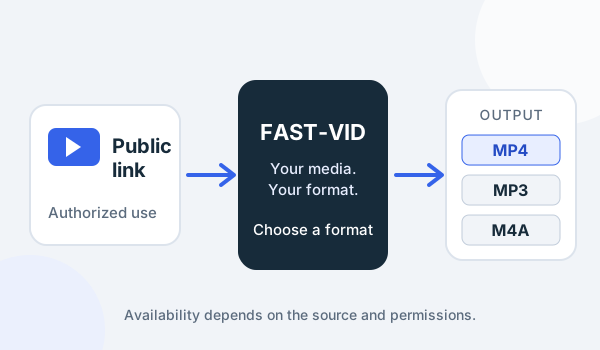
To download a video on iPad, open the page in Safari, start the download, then use the Downloads button beside the search field to check progress. Find the finished file in the Files app under the location selected in Settings > Apps > Safari > Downloads. Current iPadOS uses this Apps path; older versions may show Settings > Safari.
This guide is iPad-specific. It covers Safari's download location, the Files app, Split View and external storage. FAST-VID is a public-link downloader, not a browser extension; the browser still controls the local save prompt and the folder where the file lands.
Set Safari downloads on iPad
Safari uses one download-location setting for files it saves. On current iPadOS, open Settings > Apps > Safari > Downloads. On older versions, the path may be Settings > Safari > Downloads.
The choices are usually iCloud Drive, On My iPad and Other. iCloud Drive saves to the Downloads folder in iCloud Drive and makes the file available on other devices signed in to the same Apple Account. On My iPad keeps the file in local storage. Other lets you choose another folder visible to the picker.
- Open Settings and tap Apps, then Safari.
- Tap Downloads.
- Choose iCloud Drive, On My iPad or Other.
- If you choose Other, select a folder you can find again in Files.
The exact labels can differ by iPadOS version and language. Check the current setting before you assume a download is missing.
Start the download and watch the prompt
Open the video page in Safari and use the site's download control. Depending on the file and the site, Safari may begin saving immediately, show a confirmation, or ask you to open the file. A missing prompt does not prove that nothing happened.
After a download starts, a Downloads button appears next to the search field. Tap it to see progress and completed items. If the button is not visible, the download list may be empty or the item may already have been removed from the list.
- Tap the Downloads button to check active and recent items.
- Wait for the item to finish before opening it.
- If a site offers several formats, choose the one that fits your storage and playback needs.
- Do not tap the same link repeatedly while a download is already running.
Find the video in the Files app
The Files app is the reliable place to look after Safari finishes. Open Files, tap Browse, then open the location you selected in Safari settings. If you chose iCloud Drive, look under iCloud Drive > Downloads. If you chose On My iPad, look under On My iPad > Downloads. If you chose Other, open that folder.
| Safari setting | Where to look in Files | What it means |
|---|---|---|
| iCloud Drive | iCloud Drive > Downloads | Syncs through iCloud Drive and may be available on other devices |
| On My iPad | On My iPad > Downloads | Stored locally on this iPad |
| Other | The folder you selected | Location depends on the picker and connected storage |
Tap the file to preview or open it in a compatible app. A video that Safari can download is not automatically playable in every app; the file's container and codec still matter.
Check the newest item in the folder rather than assuming the download failed because an older file with a similar name is nearby.
Split View and multitasking
Split View places Safari and another app side by side. Open the Multitasking menu, choose Split View, and select Files. You can then drag a downloaded file from Files into another app that accepts it.
Split View does not create a second copy of the video, and it does not turn Safari into a file manager. Use it to check progress, move a file or read instructions while the page stays visible. If you switch away, return to Safari and check the Downloads button rather than assuming the transfer finished.
On smaller iPads, Split View leaves less room for each app. Slide Over may be easier for a quick Files check. The exact multitasking controls depend on iPad model and iPadOS version.
External storage and file management
The Files app can access USB drives, SD cards and file servers when they are connected and supported by the iPad. You can move or copy a downloaded video to external storage in Files after the download completes.
Whether Safari's Other location can target a connected drive depends on the picker, the drive's format and the iPad's power and adapter situation. A safer workflow is to download to iCloud Drive or On My iPad first, then move the file to the external drive and eject it properly.
Large videos can fill storage quickly. Check free space before downloading, and remember the FAST-VID output limit is 500 MB per final file. The browser's download folder and FAST-VID's temporary processing are separate; the local file is the copy you keep.
Keep a second copy of important downloads. A file stored only on a tablet or a single external drive is not a backup.
Troubleshooting iPad downloads
| Symptom | Check first | Safe next step |
|---|---|---|
| No Downloads button | Whether the download started or the list is empty | Return to Safari and try the site's download control once |
| File is not in iCloud Drive | Safari's Downloads setting | Look under On My iPad or the Other folder |
| File appears incomplete | Download progress and free storage | Wait, then download again if the file is damaged |
| Video will not open | File type and the app you are using | Try a compatible player; do not rename the extension blindly |
| External drive is missing | Connection, adapter and power | Reconnect, then eject safely before removing it |
| Site does not start a download | Site permissions and the file link | Use a supported public link; do not disable security settings globally |
If a page asks you to install a profile, trust an unknown developer or enter an account password just to save a video, stop. Those requests are not normal parts of a browser download.
Frequently asked questions
Where do downloads go on iPad?
It depends on Safari's Downloads setting. Look in iCloud Drive > Downloads, On My iPad > Downloads, or the Other folder you selected.
Does Safari on iPad save downloads to Files?
Yes. Safari saves the file to the location selected in Settings > Apps > Safari > Downloads, and you manage it in the Files app.
Can I download while using Split View?
Split View lets Safari and Files share the screen, so you can check progress and move files. It does not create a separate download library.
Why can't I find a downloaded video?
Check the Downloads button, then confirm whether Safari is set to iCloud Drive, On My iPad or Other. The file may be in a different location than expected.
Does FAST-VID change Safari settings?
No. FAST-VID does not change browser settings, bypass prompts or choose a local folder. Safari controls the save prompt and file location.
Sources and references
- Apple: Where to find downloads on iPhone or iPad
- Apple: Customize Safari settings on iPad
- Apple: Use multitasking on iPad
- Apple: Connect external storage devices to iPad
- FAST-VID: Downloading videos on iPhone
Try FAST-VID
Open the FAST-VID downloader for a supported public link, then use Safari's own download prompt. FAST-VID does not change Safari settings, bypass prompts or control where iPadOS saves the file.