On Android, the browser controls the download prompt and often the default folder; the system file manager controls the saved file. Chrome, Samsung Internet and Firefox can all save a video, but their menus, notification behavior and default locations differ. No browser is universally best for every device.
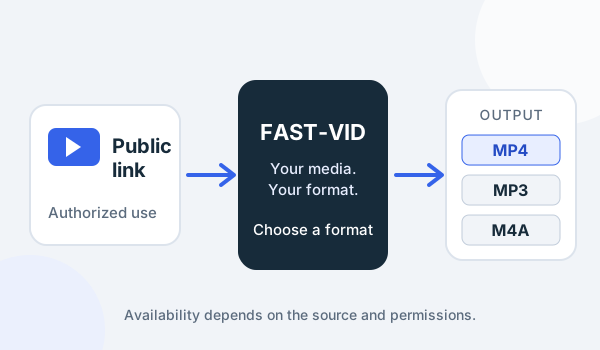
This comparison is about the browser workflow, not a claim that one app is faster or safer. FAST-VID is a public-link downloader, not a browser extension. The browser still decides whether to ask where to save and where the local copy goes.
Download prompts and notifications
When you tap a download link, Android may show a confirmation, start the file immediately, or open a system file picker. The behavior depends on the browser, Android version, manufacturer and file type. A notification is a progress aid, not proof that the file is playable.
Chrome and Samsung Internet commonly show a download notification in the notification panel. Firefox for Android shows a confirmation with the file name and size before the download starts. If you miss the notification, open the browser's Downloads list instead of searching the whole phone blindly.
- Read the file name and size before confirming.
- Do not tap a link repeatedly while a download is already running.
- Use the browser's own Downloads list to pause, cancel or reopen an item.
Google Chrome
In Chrome on Android, touch and hold the video or link and choose the download action shown, or tap a visible Download button when the page provides one. Chrome saves the file to its default download location, which can vary by version and device. The official Chrome help says the file goes to the default location and points users to the Files app to find downloads.
Open More > Downloads to see the download list. If the address bar is at the bottom, swipe up on it and tap Downloads. The list supports pausing, cancelling, sharing, renaming and deleting. The list is a browser record; the file itself is managed by Android's file storage.
Chrome's exact folder can differ across Android versions and manufacturers. If you cannot find the file, check the phone's Files app and its Downloads or Download folder, then check Chrome's own list for the recorded path or status.
Samsung Internet
Samsung Internet is the browser many Galaxy devices ship with. Its download settings are separate from Chrome's. Current Samsung support describes the path as Menu > Settings > Sites and downloads. Depending on the version, that area may offer a save location and an option such as Ask before starting downloads. Labels and placement vary by Samsung Internet version and One UI release.
Samsung's file-management guidance says downloaded content is easiest to find in My Files > Downloads. Some files may be in a browser-specific folder or on an SD card if you selected that destination. The My Files app also lets you search by file name and move items to another folder.
Do not assume a Samsung setting applies to Chrome or Firefox. Samsung Internet's "save to" choice is local to that browser; another browser can use a different folder on the same phone.
Firefox for Android
Firefox for Android shows a download confirmation with the file name and size. Tap Download to start it. Open the three-dot menu and choose Downloads to see files downloaded in Firefox. Tapping an item opens it, and the item menu can remove it from the download list or delete it from the device.
Firefox also lets you set a default download location. The available folders depend on Android's file picker and the permissions granted to Firefox. If the location is not what you expected, check Firefox's download settings before downloading again.
Firefox for Android is not the same as Firefox on a computer. The desktop Downloads panel and the Android Downloads page have different menus, even though both are Mozilla products.
Firefox for Android displays a confirmation for many downloads; read the size and source before accepting, especially on a metered connection.
Folder and permission differences
| Browser | Download list | Typical location | Main caveat |
|---|---|---|---|
| Chrome | More > Downloads | Chrome's default download location, often the phone's Download folder | Folder and prompt behavior vary by Android version |
| Samsung Internet | Menu > Downloads | Device Download folder, SD card or another chosen location | Galaxy-specific settings and labels |
| Firefox | Three-dot menu > Downloads | The location chosen in Firefox or Android's picker | Confirmation prompt before download |
Android's scoped-storage rules can prevent a file manager from browsing some app-private folders. That does not mean the browser failed; the file may exist in a location the file manager cannot show. Use the browser's Downloads list to confirm completion, then use a share or export action if you need the file elsewhere.
A file manager may label the same folder Download or Downloads. The name difference is normal and does not mean one is a duplicate.
Find, clear and manage downloads
Start with the browser's Downloads list to confirm whether the item completed. Then open the phone's file manager and look for Downloads, Download or the folder selected in the browser. On Samsung devices, My Files groups downloads by category; on other devices, the file manager may use a different name.
Clearing a browser's download history and deleting a file are not always the same action. Some menus offer both "remove from list" and "delete from device"; choose deliberately. Before clearing, move important files to a folder or cloud location you control.
If storage is full, the browser may fail before the file is complete. Check free space, then retry. FAST-VID's final output is capped at 500 MB, but the phone still needs room for the download and any temporary copies.
Which browser should you use?
Choose the browser you already use and whose Downloads list you can find. Chrome is common and integrates with Google's file workflow; Samsung Internet may be convenient on a Galaxy; Firefox offers its own download confirmation and privacy controls. None is automatically best for every file or device.
FAST-VID does not require a browser extension or an account. It can prepare a supported public link, but the browser still handles the local save. FAST-VID does not change Android permissions, browser settings or the download folder. Only download content you own or are authorized to save.
Frequently asked questions
Where does Samsung Internet save downloads?
It depends on Samsung Internet's Sites and downloads setting. Check My Files > Downloads, the device Download folder, or the SD card location you selected.
Why is Chrome downloading to a different folder?
Chrome uses its default download location, which can vary by Android version and manufacturer. Check Chrome's Downloads list and the phone's file manager.
Which Android browser is best for downloads?
There is no universal winner. Choose the browser whose prompt, download list and save location you can manage on your device.
Does Firefox for Android use the same downloads panel as desktop Firefox?
No. Firefox for Android has a mobile Downloads page and confirmation flow; the desktop Downloads panel is different.
Does FAST-VID require a browser extension?
No. FAST-VID is a web downloader. It does not install an extension or change browser permissions.
Sources and references
- Google Chrome Help: Download a file on Android
- Samsung: Where to find downloaded files
- Samsung: Manage and organize files on Galaxy
- Samsung: Samsung Browser app issues (Sites and downloads)
- Mozilla: Downloads in Firefox for Android
- FAST-VID: Downloading videos on Android
Try FAST-VID
Open the FAST-VID downloader in any supported Android browser. FAST-VID does not install an extension, change Android permissions or control the browser's save prompt.