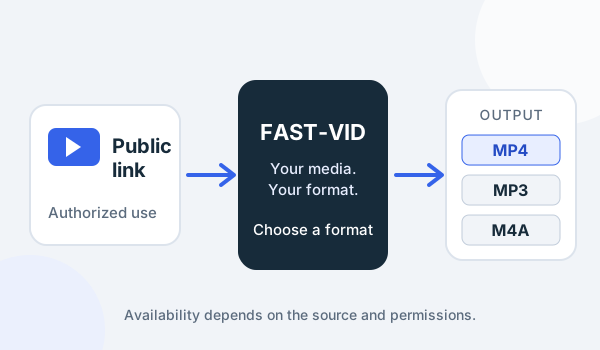
Downloading a video is not only a technical action. It is also a decision about ownership, permission and the rules of the platform that hosts the file. FAST-VID is designed for public links and for content you own or are authorized to download. It does not log in to YouTube, does not import account cookies and cannot unlock private, member-only, age-restricted or otherwise inaccessible material.
This guide focuses on the public-link workflow that the current application actually supports. It does not promise that every YouTube URL will work, and it does not describe a way around YouTube's access controls.
Before you start: permission comes first
Use FAST-VID when you own the video, when you created it, or when the rights holder has given you permission to save it. That could include your own upload, a client project you are allowed to archive, a video released under a license that permits the intended use, or a clip you have been explicitly authorized to keep.
A public visibility setting is not the same thing as permission to reuse a video. A video can be visible to everyone and still be protected by copyright. “Public” only describes who can watch it on the source platform; it does not grant rights to download, redistribute, re-upload or use the file commercially.
FAST-VID's Acceptable Use Policy and Copyright & Takedown page explain the boundaries in more detail. If you are unsure whether you have permission, stop and get clarification before downloading.
What FAST-VID can try
The YouTube tool's URL field accepts supported public links. For YouTube, that normally means the usual watch page, a shortened youtu.be link, or a supported Shorts link. The exact link forms that work depend on yt-dlp and on what YouTube exposes without a sign-in.
FAST-VID processes one media item at a time. It does not expand a playlist into a batch download. If a URL includes playlist parameters, treat the result as an attempt to process the single linked item rather than a request to save the entire playlist.
The current implementation has several deliberate limits:
- No YouTube account login and no imported cookies.
- No support for private, members-only or age-restricted content that requires authentication.
- No DRM or paywall bypass.
- A default maximum file size of 500 MB. Larger choices are disabled or can fail with a size message.
- Completed files are temporary and are normally removed after about 30 minutes.
Those limits are part of the service, not an error in your browser. They exist to keep the downloader predictable and to avoid pretending that every YouTube link is available.
The FAST-VID workflow
1. Copy the public video URL
Open the video on YouTube and copy the link from the address bar or the Share action. Make sure it points to the video you intend to save, not to a channel page or an unrelated playlist. If the link only works while you are signed in, FAST-VID will not be able to use your sign-in state.
2. Paste the link and request media info
Paste the URL into the FAST-VID downloader and select Get media info. FAST-VID sends the link to its worker, which asks yt-dlp what public formats and metadata are available. A successful lookup opens the result card with the title, available video choices and available audio choices.
3. Choose a format and review the result
The video tab normally offers one MP4 choice per available quality. The audio tab can offer MP3 at the best available quality, a smaller 128 kbps MP3, and M4A without conversion when the source provides a suitable audio track. Read the labels and the size note before you choose.
4. Preview or download
When the completed output is an MP4, FAST-VID can show a native browser preview. Preview is useful for checking that you selected the right file. MP3 and M4A are download-only. The download button is explicit: FAST-VID does not silently start a file when you only request metadata.
MP4, MP3 or M4A?
MP4 is the normal choice when you need a video file that plays in common browsers, phones, tablets and editing tools. FAST-VID prefers H.264 where the source provides it, because it has broad playback support. Some sources only provide newer codecs such as VP9 or AV1; those may look fine but can be less compatible with older devices.
MP3 is useful for audio-only listening, podcasts, voice notes or music where an MP3 is acceptable. FAST-VID offers a best-quality MP3 and a smaller 128 kbps option. MP3 involves conversion, so it is not a bit-for-bit copy of the original audio.
M4A is the “original, no conversion” audio choice when a suitable track exists. It preserves the source audio container and is often the better choice when you want the original audio rather than an MP3 re-encode. If the source does not expose a suitable M4A track, the option may be unavailable.
Audio is not always available separately. A video may have no usable audio stream, or the source may present audio in a format that cannot be packaged as the requested output. In that case, the audio tab may be empty or the download may fail with a clear error.
Quality, file size and the 500 MB limit
Higher resolution usually means a larger file. FAST-VID shows a size when the source provides one, but estimates can differ after video and audio are merged.
The default 500 MB limit is intentional. If a quality choice is larger than the limit, the interface can disable it or warn you. Choose a lower resolution or an audio-only output if you need a smaller file. A download that starts successfully can still fail if the final output exceeds the limit.
YouTube can change formats and delivery methods. A quality that worked previously may disappear. The choices come from the current source response, not a permanent catalogue.
Troubleshooting common YouTube failures
“Sign in to confirm you're not a bot”
YouTube may ask the server's network to sign in or may temporarily restrict the request. FAST-VID does not send a YouTube account cookie, so this is not something the page can bypass. Try again later or from another network. If the restriction persists, the link may not be usable through this deployment.
The video is private, removed, age-restricted or members-only
FAST-VID does not authenticate with YouTube, so these links are outside the supported workflow. The page may show a metadata error or no usable formats. Do not attempt to work around the restriction by supplying credentials or cookies; the application does not accept them.
No formats appear
The worker may not have been able to extract media information. This can happen when the link is unsupported, the video is unavailable in the server's region, the source response changed, or the worker's yt-dlp version needs an update through the normal release process. A retry is reasonable; repeated failures should be treated as an unsupported link.
The file is too large
Choose a lower video quality or an audio output. The interface shows the limit before the download whenever possible, but final sizes can exceed an estimate. A 500 MB cap cannot be overridden from the downloader page.
The file expired
Completed files are temporary. If a download link expires before you save it, request the media again and download promptly. FAST-VID is not a permanent media library.
Preview does not appear
Preview is intended for MP4 video outputs. MP3 and M4A are download-only. If preview fails, save the file and open it in a local player.
Frequently asked questions
Can FAST-VID download any YouTube video?
No. It can attempt supported public links, but private, members-only, age-restricted, removed or otherwise inaccessible videos are not guaranteed. FAST-VID does not log in to YouTube or bypass access controls.
Does downloading a public video give me permission to republish it?
No. Public visibility does not grant copyright permission. You still need the rights holder's permission or another valid legal basis for copying, editing, re-uploading or distributing the file.
Why is the audio option missing?
The source may not expose a separate usable audio stream, or yt-dlp may not be able to produce the requested audio output. Video choices can still be available even when the audio tab is empty.
Can I download a playlist?
FAST-VID processes one media item at a time and does not expand a playlist into a batch. Paste the specific public video link you intend to process.
Responsible use
Only download content you own or are authorized to download. Keep the file private unless you have permission to share it. Do not re-upload someone else's video, remove attribution, or present third-party work as your own. Follow YouTube's terms and the copyright law that applies to you.
FAST-VID is an independent service. It is not affiliated with YouTube and does not claim that a video's availability on YouTube grants any reuse rights.
Sources and references
- YouTube Terms of Service — platform terms that apply to YouTube content.
- YouTube copyright overview — YouTube's copyright information page.
- yt-dlp supported sites — the extractor project used by the FAST-VID worker.
Try FAST-VID
Paste a supported public link on the FAST-VID downloader, choose an available format and review the result before downloading. If a link is private, removed or restricted, FAST-VID cannot bypass that restriction.
For the platform-specific entry point, open the YouTube downloader page.