Open Downloads with Ctrl+J or the Downloads button, then check the item's status and save location. Edge can ask where to save each file or send files to a default folder. SmartScreen may also hold or warn about a download before it is saved.
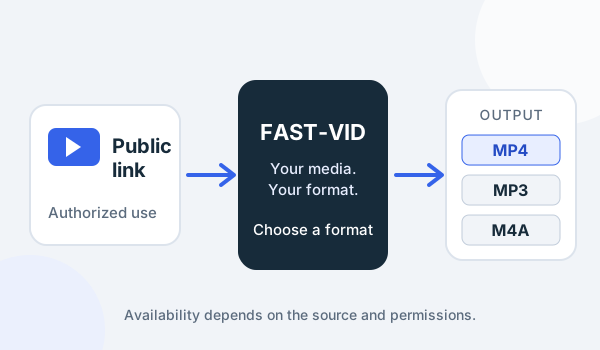
This guide focuses on Microsoft Edge on Windows and notes where other platforms may differ. FAST-VID is a public-link downloader, not an Edge extension. It does not change SmartScreen, browser permissions or the local save location.
Use the Downloads flyout and history
In Edge, select the Downloads button on the toolbar or press Ctrl+J to open the Downloads flyout. It shows active and recent downloads and lets you open a file, show it in its folder, retry it or remove the entry. A full Downloads page is available from the same area.
The exact labels vary by Edge version and platform. On macOS, use the Edge menu and the equivalent keyboard shortcut rather than assuming the Windows Ctrl+J combination. If the toolbar button is hidden, open the Settings and more menu and choose Downloads.
- Check whether the item is in progress, paused, failed or blocked.
- Use Show in folder to open the saved location.
- Remove old entries only after confirming whether you also want to delete the file.
The Downloads page can show an item that is no longer in the flyout. Use the page to check older entries before searching the whole disk.
Find or change the save location
Open Settings and more > Settings > Downloads. The current folder is shown under Location. Select Change to choose another folder. This page also contains the option to ask where to save each file before downloading.
If that prompt is enabled, Edge may wait for you to choose a folder. A download can look missing while a save dialog is open behind the browser. Check for the dialog, then choose a location you can find in File Explorer.
A folder that is read-only, disconnected, full or controlled by another user can cause a save failure. Choose a normal local folder, confirm free space, and retry. Do not save directly to a removable drive that may be removed during the download.
What SmartScreen is checking
Microsoft Defender SmartScreen checks downloads against reported malicious software and against a reputation list of files commonly downloaded by Edge users. If it finds a match or the file is not well known, Edge can warn you or block the download for your safety.
That warning is a risk signal, not a courtroom verdict. A file can be safe but uncommon, and a malicious file can temporarily avoid reputation checks. Do not treat "not commonly downloaded" as proof of malware, and do not treat a missing warning as proof of safety.
SmartScreen can be managed by a work or school administrator. If the setting is locked, do not try to defeat it; ask the administrator. Turning SmartScreen off globally is not a troubleshooting step for one download.
Read a warning and choose a safe action
| Warning context | What it suggests | Safer response |
|---|---|---|
| File is not commonly downloaded | Limited reputation, not a malware verdict | Verify the publisher, source and file name; cancel if unsure |
| File is reported as unsafe | Reputation or threat data flags it | Cancel unless you have independent proof it is the expected file |
| Site warning before download | The page itself may be suspicious | Leave the site; do not continue to the file |
| Work or school policy block | An administrator controls the setting | Contact the administrator; do not attempt a bypass |
Only proceed if you can verify the file through a trusted channel: the publisher's official site, a known checksum or signature, or an administrator's instruction. If you cannot verify it, delete it. Reporting a false positive to Microsoft is reasonable after verification, not instead of it.
Site permissions and extensions
Edge may block an automatic download because of a site permission, a pop-up block or an extension. Open the site information panel from the address bar and review permissions for that site. Change only the setting that explains the symptom.
Extensions can intercept downloads, redirect links or block scripts. Disable extensions temporarily to test, then re-enable them one at a time. Do not install an unknown download manager to fix a problem caused by a site or folder permission.
InPrivate windows reduce saved history but do not guarantee anonymity, and they do not remove a file from disk. If a download disappears from the list after an InPrivate session, check the save folder directly.
Interrupted and missing downloads
If an item is paused, use the resume control in the Downloads flyout. If it failed, check the connection, free space and destination permissions, then retry. A partial file should not be opened as if it were complete.
If Edge says the download completed but the file will not play, check the file type, size and player. A downloaded video can be intact and still use a container or codec that the current app does not support.
Security software can quarantine a file after Edge saves it. Check the security product's protection history rather than disabling real-time protection. If the file is not important, delete it and move on.
If a retry creates a second file with a similar name, compare sizes and dates before deleting either copy.
A safe troubleshooting sequence
| Step | Check | Why |
|---|---|---|
| 1 | Downloads flyout (Ctrl+J) | Confirms status and gives Show in folder |
| 2 | Settings > Downloads > Location | Finds the actual save folder |
| 3 | Free space and folder permissions | Explains failed or incomplete saves |
| 4 | Save prompt behind the window | Explains a download waiting for a choice |
| 5 | SmartScreen message | Determines whether the file was blocked |
| 6 | Extensions and site permissions | Finds interference without disabling security |
FAST-VID does not repair Edge, bypass SmartScreen, override permissions or choose your local folder. It prepares a supported public link; Edge handles the download and its safety checks. Only save content you own or are authorized to download.
Frequently asked questions
Where are Edge downloads saved?
The folder is shown in Edge Settings > Downloads under Location. The default is often the Windows Downloads folder, but it can be changed.
Why does Edge warn about a download?
Microsoft Defender SmartScreen can warn when a file has bad reputation, is not commonly downloaded or matches threat data. It is a risk signal, not proof either way.
Can I keep a file Edge blocked?
Only if you can independently verify the source and file. Do not bypass a warning for an unknown or suspicious download.
How do I open the Downloads flyout?
Select the Downloads button or press Ctrl+J on Windows. The exact control varies by Edge version and platform.
Does FAST-VID disable SmartScreen?
No. FAST-VID does not change browser settings, bypass SmartScreen or override a security warning.
Sources and references
- Microsoft: How SmartScreen helps protect you in Edge
- Microsoft: Change the downloads folder in Edge
- Microsoft: Keyboard shortcuts in Edge
- Microsoft: Browse securely in Edge
- FAST-VID: Is an online video downloader safe?
Try FAST-VID
Open the FAST-VID downloader in Edge for a supported public link. FAST-VID does not bypass SmartScreen, change site permissions or repair a failed browser download.